

TL;DR: If you need to troubleshoot a failed Windows update, take note of the KB number, error code, and Windows version and build. Check for similar problems on all other endpoints. Then, look for pending restarts, low disk space, connection problems, and restrictive update policies before examining logs. Fix the identified cause, retry on one device, and confirm the update installed after doing the necessary restarts.
It can be annoying to get a failed cumulative update on one laptop. But for it to affect an entire deployment ring is another thing. Worst of all, it may not improve when you click the Retry button without learning what Windows is reporting. For a process to be useful, it needs to separate installation errors and successful installs that still leave an endpoint unhealthy. That way, you can focus on troubleshooting what really matters and avoid making unnecessary changes.
What should you check when a Windows update fails?
Ultimately, there are four things that you need to check: the failed KB number, the complete hexadecimal error code, the Windows version and OS build (run winver), and the failure timestamp. On Windows 11, do the following:
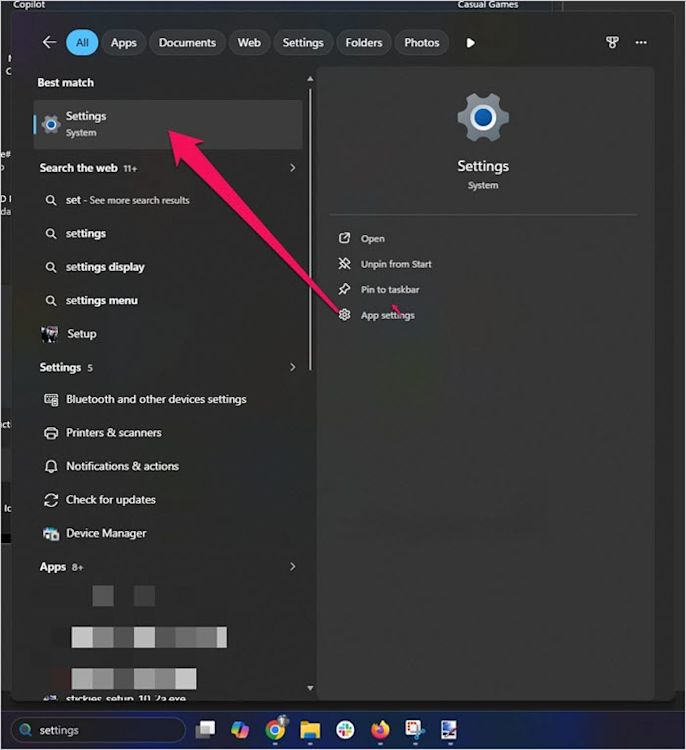
Open Settings.
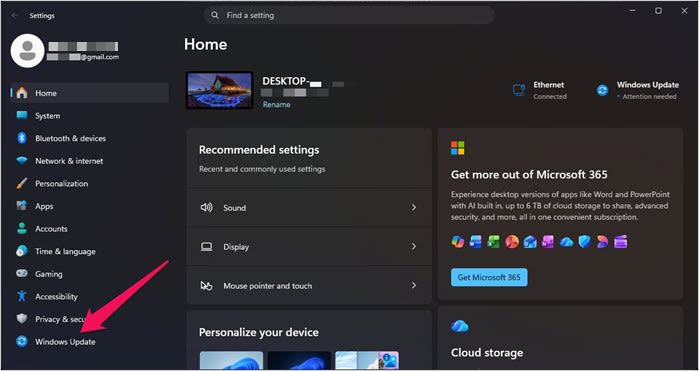
Select Windows Update.
Click Update history and compare the result with your deployment report.
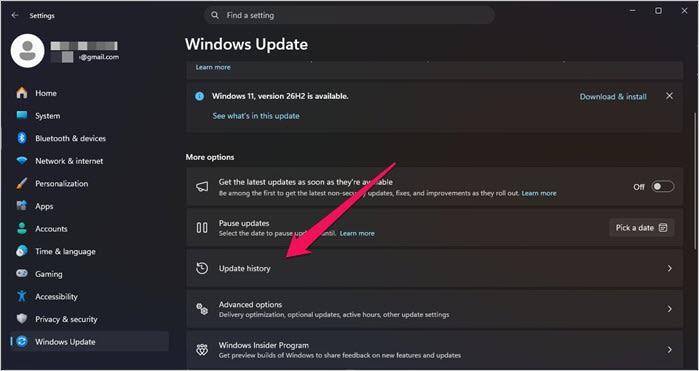


Just because you have a failed entry doesn’t mean that an endpoint is still missing the patch. This is especially true if it recently got a cumulative update that replaced it.
You then need to establish scope. You need to determine whether the failure is isolated to one machine, hardware model, Windows version, or the entire deployment ring. If the failures are shared, then the problem could be drivers, update policies, or connectivity. If only one endpoint failed, closer inspection is warranted. PDQ's discussion of patch management challenges explains why the actual device state matters more than a deployment result.
You can check if the device needs a restart or whether the system drive is full. Make sure that the computer can reach its configured update source and review any Windows update policies that were applied using Group Policy or mobile device management (MDM). Check the Microsoft website for any support article regarding that failed update’s KB number, as those usually outline any known problems. For future updates, you should also check Windows release health if there are compatibility issues with some devices and whether Microsoft has blocked the upgrade on them.
How do you troubleshoot and fix the failure?
Work through these steps, using detailed diagnostics when basic checks don't explain the failure.
Check the basics. If a restart is pending, schedule and complete it. Check available disk space and connectivity to the configured update service, such as Windows Update or Windows Server Update Services (WSUS). If needed, run the Windows Update troubleshooter. Don't bypass your organization's security controls or update policies to force an installation.
Look up the error code. Treat the code as a clue, not a complete diagnosis. For example,
0x80070070can point to insufficient space during an upgrade,0xC1900101often indicates a driver-related upgrade problem, and0x800f081fcan mean Windows can't find required repair files. Use Microsoft's upgrade guidance for upgrade failures and its Windows Update error reference for servicing errors.Check the relevant logs. In the Event Viewer, open Applications and Services Logs > Microsoft > Windows.
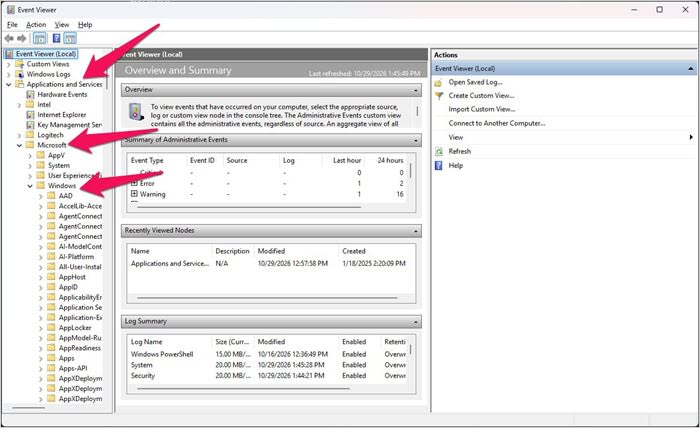
WindowsUpdateClient > Operational and find events around the failure time.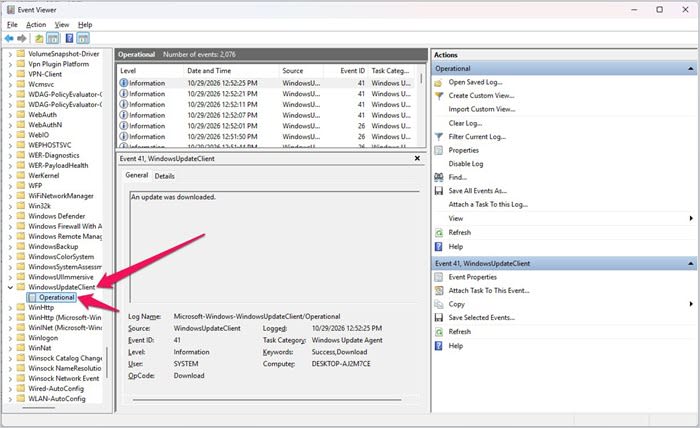
Run G
et-WindowsUpdateLogin PowerShell to turn Windows Update trace files into a readable log. For component-servicing errors, check%windir%\Logs\CBS\CBS.log. For a failed feature upgrade, review SetupDiag results. Match entries to the failure time and update rather than assuming every “failed” message is relevant.Fix the cause you found. Free disk space if storage is the problem. Correct misconfigured proxy or update-source settings if downloads fail, or address an incompatible driver identified in upgrade logs. If the logs indicate corrupted Windows components or system files, open an elevated Command Prompt and run
DISM /Online /Cleanup-Image /RestoreHealth, followed bysfc /scannow. Microsoft recommends this order. If DISM can't obtain repair files, it may need a compatible alternate source. Don't clear the update cache or reset update components unless the evidence points to that repair.Test the fix before rolling it out. Retry the update on one repaired endpoint. If successful, test other affected devices before deploying the fix widely. Retrying a deployment alone doesn't necessarily resolve the underlying Windows problem.


How do you confirm the update was installed successfully?
After you’ve completed the necessary reboots, go to Update History or your management platform to confirm that the update has been installed successfully. For a cumulative Windows OS update, run winver and compare the OS build with the build listed in the relevant Microsoft KB article. Test any essential services and business applications to make sure that they still work. You never know what the update has broken until you conduct some tests.
You can see whether the applicable updates have installed, failed, are pending a reboot, or are not installed via PDQ's Windows updates view. These statuses give you insights into what actions you need to take. PDQ's guide to deploying monthly Windows updates explains how to verify results across deployment rings.
If the update keeps failing, escalate the issue with the KB number, error code, Windows build, device model, update source, attempted fixes, and relevant logs. If an update installs but causes production problems, rolling back Windows updates may be appropriate after evaluating the security impact. Rollback is a recovery option for a problematic installed update, not a fix for an installation that was never completed.

Manage Windows & macOS devices from anywhere
With PDQ Connect, get real-time visibility into remote and local devices, deploy software, remediate vulnerabilities, automate routine maintenance, and remotely troubleshoot endpoints from one easy-to-use platform.

