

TL;DR: To change the DHCP lease time in Windows Server, open Server Manager, go to Tools > DHCP, select the scope, open Scope Properties, and adjust the lease duration on the General tab. Lease time controls how long a device keeps an IP address before renewal, and best practice is to use longer leases, such as 8 days, for mostly static desktop environments, and shorter leases, such as 8 hours to 1 day or even 30 minutes, for mobile, public, or IP-constrained networks to keep addresses available and reduce conflicts.
DHCP lease time determines how long a device keeps its assigned IP address before requesting renewal. You can change the lease duration in your DHCP scope settings to match your network’s device mobility and IP availability. Adjusting this setting helps prevent IP exhaustion and unnecessary DHCP traffic.
How to change DHCP lease time in Windows Server
Here’s how to change the DHCP lease time using the DHCP management console in Windows Server. This method works across most Windows Server versions and gives you direct control over lease duration at the scope level.
Log in to your DHCP server, then launch Server Manager.
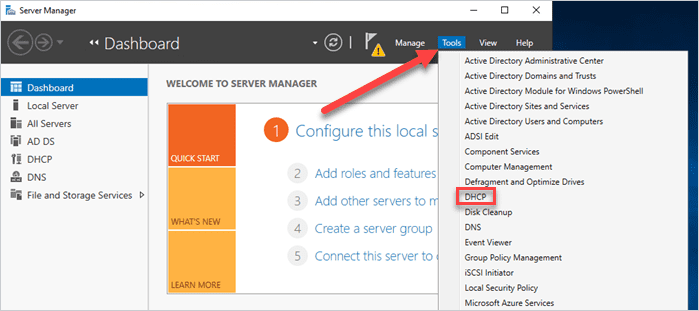
In Server Manager, click Tools > DHCP.
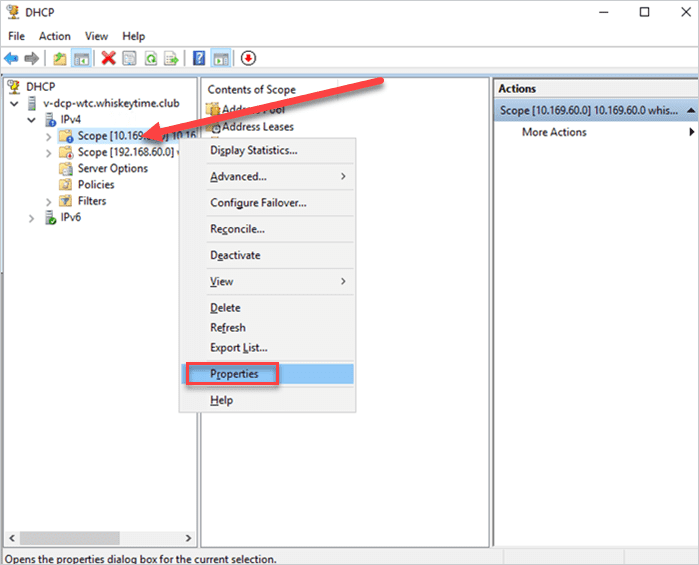
Expand the DHCP server tree(s) on the left side of the management console, then select the scope you want to modify.
Right-click the scope, then click Properties.
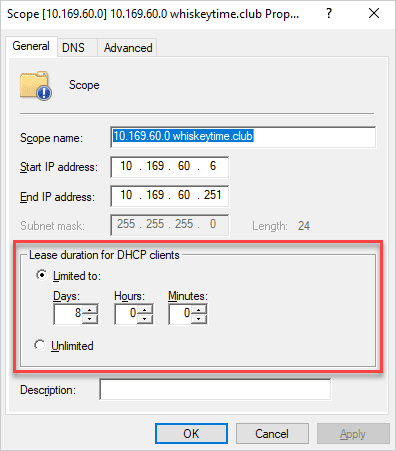
On the General tab of the Scope Properties window, you’ll find the Lease duration for DHCP clients settings. Adjust these settings to meet the needs of your organization.


There you have it. You’re just five easy steps away from modifying your DHCP lease time. But what should you set your lease time to? That’s a great question worth discussing. Let’s see if we can answer it.
DHCP lease time best practices
There is no universal DHCP lease time. The ideal lease duration depends on device mobility, IP address availability, and network type. However, here are some general guidelines to help you choose a lease time that works best for your network.
When to lengthen DHCP lease time
It's common to lengthen the DHCP lease time on networks consisting primarily of nonmobile devices, such as workstations. In these scenarios, an 8-day lease period is pretty standard. This helps reduce unnecessary DHCP network traffic.
When to shorten DHCP lease time
Mobile fleet
If your network includes a large number of mobile devices, you may want to leave your DHCP lease period to 1 day or perhaps shorten it to about 8 hours. Shortening the lease period ensures that mobile devices only periodically on the network don't retain IP addresses for an extended period.
Publicly accessible network
If you provide publicly accessible network connectivity, consider setting your DHCP lease duration to 1 hour or even 30 minutes. Devices that constantly join and leave the network quickly consume available IP addresses in these environments. A short lease period ensures IP addresses are reclaimed quickly.
Limited range of IP addresses
Another reason to shorten your lease length is if your network has a limited range of IP addresses available. If you can't increase the size of your subnet to add more IP addresses, a shorter lease period helps ensure IP addresses remain available.
DHCP lease time FAQ
What is a DHCP server?
Dynamic Host Configuration Protocol (DHCP) is a networking protocol designed to automate the distribution of network configuration settings to devices. A DHCP server distributes IP addresses from a pool of available addresses and leases them to hosts.
Back in the '70s, when personal computers were first becoming a thing, users had to manually configure their devices’ network settings. As you can imagine, this presented problems as companies acquired larger numbers of devices. To accommodate this growth, Bootstrap Protocol (BOOTP) was introduced in the '80s. BOOTP servers automatically assigned network configuration information to devices, but they required a lot of administration. For a host to receive its network configuration settings, an administrator had to manually add its MAC address to the BOOTP server's database. Additionally, the configuration information sent was static and couldn't be updated dynamically.
Jump to the '90s, and DHCP was developed, bringing many quality-of-life improvements, including dynamically assigning network addresses, nonpermanent address leases, and the ability to reclaim expired address leases. It also removed the need to maintain MAC address listings on the server. In fact, DHCP was so awesome that it really hasn't drastically changed since it was first developed.
What are DHCP lease times?
The DHCP lease time is the mechanism that allows DHCP servers to reclaim IP addresses, preventing a host from permanently retaining an IP address. When a DHCP server sends an IP address to a device, it also sends a lease time. The lease time is the amount of time before the DHCP server reclaims an IP address. Once an IP address is reclaimed, it can be reassigned to another host.
What happens if a DHCP lease expires?
When a DHCP lease expires, the DHCP server reclaims the IP address assigned to the device. To combat the lease expiration, the device must then request a lease renewal to continue using the same IP address. If the lease renewal is unsuccessful, or if the device doesn't communicate with the DHCP server, the IP address becomes available for assignment to another device on the network.
Why is DHCP lease time important?
DHCP lease time determines how long an IP address is allocated to a device on a network. It's crucial for optimizing IP address utilization and managing network resources. A well-balanced lease time prevents addresses from being tied up unnecessarily, ensures efficient IP address allocation, and helps maintain a healthy network environment.
Can I change DHCP lease times for different devices on the same network?
Yes, you can set different DHCP lease times based on the needs of different devices or user groups within your network. For instance, you might assign longer lease times to desktop computers that remain connected, while assigning shorter lease times to mobile devices that frequently connect and disconnect. Customizing lease times helps optimize IP address allocation for various usage patterns.
Is there a DHCP best practice to follow in terms of lease duration?
Yes, there’s one DHCP best practice I recommend following in terms of lease duration. I suggest lengthening the lease time for nonmobile fleets and shortening the lease time if your environment is largely mobile, hosted on a publicly accessible network, or contains a limited range of IP addresses. A longer lease time on nonmobile devices reduces unnecessary DHCP network traffic. A shorter lease time for the scenarios described above helps free IP addresses for other devices to use.
What happens if two devices attempt to use the same IP address?
When two devices try to use the same IP address, we run into an issue called IP address conflict. An IP address conflict occurs when two devices attempt to use the same IP address, typically resulting in network connectivity loss for one or both devices.
It’s like witnessing two siblings fight over the same ice cream cone. They play tug-of-war with it only to drop it in the end, with neither sibling getting the cone.
Changing your DHCP lease time is straightforward, but selecting the optimal lease duration requires evaluating device mobility and available IP addresses. Play around with your lease schedule until you find what works best for your organization.
And while you’re looking for ways to optimize your environment, take advantage of a free 14-day trial of PDQ. Our tools give you insight into your environment and next-level control of your patch management and software deployment processes.


