

TL;DR: Windows 11 shows ads and suggestions in multiple areas, but you can disable them through Settings or registry changes by turning off recommendations, tips, search highlights, and widgets. While ads are driven by revenue, many users object since Windows is paid, and admins can remove them at scale with tools like PDQ Connect.
Windows 11 includes ads and suggestions across the Start menu, Settings, search, and lock screen. You can disable these by turning off recommendations, tips, search highlights, and widgets in Settings or via registry changes.
If you’re like me, you’ve probably seen a lot of articles talking about Microsoft embedding ads in Windows 11. And if you’re like me, you’re probably thinking to yourself, “Well, I don’t want ads on my operating system.” And if you’re like me, you’re probably really handsome 😉. While that last one’s not important, we can still talk about how Microsoft is trying to shove ads into our beloved Windows OS.
Loading...
Before we get into the ad-disabling goodness, I’m going to rant about Microsoft and ads for a couple of minutes. Feel free to scroll past my ramblings and head straight into the details if that’s what you’re here for. Otherwise, enjoy the rant and let me know if you agree over on our Discord server.
Why does Windows 11 show ads?
Microsoft seems hell-bent on making as much money as possible (shocking, I know). Unfortunately for us, that means ad revenue.
Ads are everywhere these days. Social media? Ads. Search engines? Ads. Mobile apps and games? Ads. Our beloved streaming services, which promised to be the death of ads? Ads.
So, it should come as no surprise that ads were destined for the Windows operating system sooner or later. There’s just too much money in it. Forecasts show the U.S. is poised to fork out almost $400 billion (yes, with a “b”) in ad spending in 2024. That’s a big pie. And Microsoft, much like myself, loves nothing more than a big ol’ piece of pie.
Why is everybody so upset?
Many users object to ads in Windows 11 because the operating system is a paid product, with licenses starting around $139, and ads are typically associated with free services. If I’m spending that much money for a product, I better not get a whiff of an advertisement.
The right way to implement ads
A common alternative to ads in paid operating systems is offering a free, ad-supported version alongside paid ad-free tiers. Make Windows Home version free. Supplement the cost with ad revenue. Continue charging for Windows Pro and Enterprise versions, but keep them ad free.
This type of product strategy is pretty common, especially with mobile apps. Is it perfect? Probably not. Would users be a lot more understanding? Probably. Well, maybe. You’d probably still get a few people complaining. But you know what they say: You can’t please everyone.
How to disable ads in Windows 11
To disable ads in Windows 11, turn off recommendations, tips, and promotional content across system settings, search, and UI elements.
At the end of each section, I’ve included the registry keys associated with the settings we modified. As always, if you’re modifying the registry, make sure you know what you’re doing and always create a backup.
Disable ads in the Windows 11 Start menu
The Start menu is one of the most used GUIs in Windows. Unfortunately, Microsoft is very aware of that, which makes it prime real estate for advertising. Thankfully, disabling ads in the Start menu (and most other places we’ll discuss) is pretty easy.
Right-click on the Start button, then click Settings.
Click Personalization, then click Start.
Disable Show recommendations for tips, shortcuts, new apps, and more.

Disabling this setting should stop Microsoft recommended store apps from showing up in the Start menu. If you’re trying to get rid of the already existing bloatware that Microsoft so kindly adds to your fresh OS install, we’ve got an entire article dedicated to removing bloatware.
Windows Registry Editor Version 5.00

[HKEY_CURRENT_USER\Software\Microsoft\Windows\CurrentVersion\Explorer\Advanced]
"Start_IrisRecommendations"=dword:00000000
Disable ads in the Windows Settings app
Don’t want to see suggested content in the Windows settings app? I don’t blame you. Here’s how to disable that.
Launch the Settings app, then click Privacy & security.
Click General.
Disable Show me suggested content in the Settings app.
While you’re on this page, feel free to disable the other telemetry settings. Just to send Microsoft a message.

Windows Registry Editor Version 5.00

[HKEY_CURRENT_USER\Software\Microsoft\Windows\CurrentVersion\ContentDeliveryManager]
"SubscribedContent-338393Enabled"=dword:00000000
"SubscribedContent-353694Enabled"=dword:00000000
"SubscribedContent-353696Enabled"=dword:00000000
Disable lock screen notifications, suggestions, and tips
To disable lock screen ads and suggestions in Windows 11, switch from Windows Spotlight to a static image and turn off tips and notifications.
In the Settings app, click Personalization.
Click Lock screen.
Change Personalize your lock screen from Windows spotlight to Picture, then uncheck Get fun facts, tips, tricks, and more on your lock screen.

Lastly, change the Lock screen status to None.
With all that disabled, you can now enjoy your clutter-free lock screen picture as Bill Gates intended.
Windows Registry Editor Version 5.00

[HKEY_CURRENT_USER\Software\Policies\Microsoft\Windows\CloudContent]
"DisableSpotlightCollectionOnDesktop"=dword:00000001

[HKEY_CURRENT_USER\Software\Microsoft\Windows\CurrentVersion\ContentDeliveryManager]
"RotatingLockScreenOverlayEnabled"=dword:00000000
"SubscribedContent-338387Enabled"=dword:00000000
Disable notification ads and device setup prompts
To disable notification ads in Windows 11, turn off tips, suggestions, and welcome prompts in Notification settings.
In the Settings app, click Notifications.
Scroll down, and while you’re scrolling, disable notifications from any apps you don’t want to receive notifications from.
At the bottom of the page, click Additional settings.
Uncheck the Show the Windows welcome experience… and Get tips and suggestions… settings.

Windows Registry Editor Version 5.00

[HKEY_CURRENT_USER\Software\Microsoft\Windows\CurrentVersion\ContentDeliveryManager]
"SubscribedContent-310093Enabled"=dword:00000000
"SubscribedContent-338389Enabled"=dword:00000000
Disable ads and suggestions in your search menu
Are you frustrated with your search window looking like this?

Don’t get me wrong, I love pasta and video games, but not in my search menu. Here’s how to ditch the mess and get your search menu looking like this.

In the Settings app, click Privacy & Security.
Click Search permissions.
Disable Show search highlights.
Windows Registry Editor Version 5.00

[HKEY_CURRENT_USER\Software\Microsoft\Windows\CurrentVersion\SearchSettings]
"IsDynamicSearchBoxEnabled"=dword:00000000
Remove unwanted ads from File Explorer
Even File Explorer isn’t safe from being a potential ad space. Here’s how to ensure ads don’t show up in File Explorer.
Enter file explorer into the search field, then click the File Explorer app result.
Click the ellipsis […] button, then click Options.
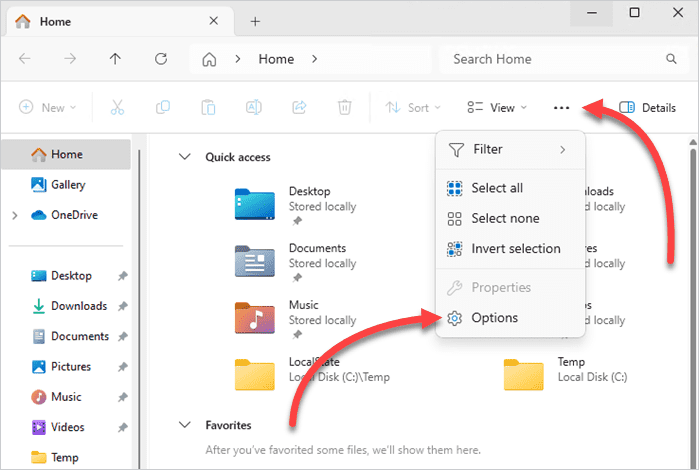
Click the View tab.
Uncheck Show sync provider notifications.


Windows Registry Editor Version 5.00

[HKEY_CURRENT_USER\SOFTWARE\Microsoft\Windows\CurrentVersion\Explorer\Advanced]
"ShowSyncProviderNotifications"=dword:00000000
Disable the Windows widgets app
To disable widget-based ads and content in Windows 11, turn off Widgets in the taskbar settings.
In the Settings app, click Personalization.
Click Taskbar.
Disable the Widgets option.

I was originally debating whether or not I wanted to highlight disabling the widgets app. However, the widgets app on my laptop started to launch as soon as I logged into my laptop. This didn’t happen every time, but probably like 75% of the time. I double and triple-checked to ensure I wasn’t accidentally mousing over the widgets app after signing it. Nope. I would sign in and it would just launch by itself. The last thing I want when I turn on my computer is a face full of Bing news articles. So, it got the axe.
Windows Registry Editor Version 5.00

[HKEY_CURRENT_USER\Software\Microsoft\Windows\CurrentVersion\Explorer\Advanced]
"TaskbarDa"=dword:00000000
Ads? Not on my watch
Windows 11 ads can be disabled by turning off recommendations, tips, widgets, and search highlights in system settings or via registry changes. For IT teams, these settings can also be deployed across devices using management tools.
I think Benjamin Franklin’s famous quote should be changed to “In this world, nothing can be said to be certain, except death, taxes, and ads.” Thankfully, with a bit of grunt work, we can cleanse our devices of unwanted advertisements. Hopefully, if enough people disable ads in Windows, Microsoft will get the hint and remove them. Probably not — but one can dream.
Disable ads on your managed Windows devices
With PDQ Connect, you can deploy the registry keys covered in this article to get rid of Windows ads across your entire Windows fleet.


