

TL;DR: Wake-on-LAN (WoL) is a network standard that wakes powered-off or sleeping computers using a magic packet. While WoL was designed for local networks, IT teams often try to use it to turn on remote endpoints. This works only under specific conditions, such as shared subnets or local proxy devices, and frequently fails for internet-based or work-from-home systems.
Turning on remote computers is more complicated than it sounds. Wake-on-LAN can only wake devices under specific network conditions, typically when systems share a subnet or have a local proxy device available. Understanding these limitations is critical before relying on WoL for remote or work-from-home endpoints.
Loading...
What is Wake-on-LAN?
Wake-on-LAN, or WoL, is a networking standard introduced in 1997 that allows computers to be powered on or resumed from sleep by receiving a specific network message. While advancements have been made over the years to further support and extend the capabilities of Wake-on-LAN, the core functionality remains unchanged.
How does Wake-on-LAN work?
Wake-on-LAN works by sending a magic packet at the data link layer that contains the target device’s MAC address. When a matching network interface receives this packet on the same local network, it signals the system to power on.
I like to think of WoL like trying to wake up one of my teenage kids who we’ll call Kelly and Christa. If I yell loud enough, they can hear me throughout the house. If I yell, “Christa, wake up!” both kids will hear it, but only Christa will respond, though usually threats are involved.
The downsides of Wake-on-LAN
Wake-on-LAN is awesome — when it works. Unfortunately, there are several reasons why it may not work. Here are a few of the hurdles you may run into when trying to utilize WoL to turn on remote devices.
1. Wake-on-LAN broadcast packets are not routed
As the name suggests, Wake-on-LAN was designed to work on your local area network. Broadcast packets are generally not routed past the LAN. Remember my stellar analogy about waking up teenagers? Well, if my teenager was asleep at their friend’s house, I couldn’t wake them up by yelling.
There are ways around this limitation, such as subnet-directed broadcasts, but they require specialized network configuration, which usually isn’t enabled by default and could leave your network vulnerable to DDoS attacks.
2. Devices and networks must be configured to support Wake-on-LAN
WoL requires the correct configuration of multiple settings in order to function. Generally, there are at least three things you need to set up to utilize WoL:
The device BIOS needs to have the feature enabled.
The device NIC needs to allow magic packets to wake the device.
The network needs to be configured to allow Wake-on-LAN broadcasts.
Additional factors, such as the operating system and supported power states, can also affect Wake-on-LAN reliability.
3. Wake-on-LAN creates a lot of noisy network traffic
Because magic packets are broadcast, Wake-on-LAN generates a lot of network traffic. Unlike most network traffic, which is routed directly to the target device, broadcast messages are sent across the entire network. While the bandwidth cost isn’t totally unreasonable, maybe just give your network engineer a heads-up before sending out a bunch of magic packets.
4. No work-from-home support
If you’re trying to turn on work-from-home (WFH) devices, Wake-on-LAN probably isn’t the answer. In addition to amplifying the limitations listed above, there are other contributing factors that make it increasingly difficult to utilize WoL to wake WFH devices.
Most WFH devices are notebooks that connect via Wi-Fi, and wireless adapters generally don’t have as much universal support for WoL as wired NICs do.
Work-from-home device portability is also a factor because there is a greater chance the device won’t be plugged into a power source. WoL requires network adapters to continuously draw a small amount of power to listen for WoL messages.
Lastly, a common method to get WoL to wake remote devices is to utilize a proxy device located on the same subnet. The proxy device then sends the magic packet to wake the offline device. However, most home networks won’t have an additional device on the network to utilize this WoL workaround.
How to use Wake-on-LAN
Wake-on-LAN can be triggered using management tools, third-party utilities, or custom scripts, depending on how your environment is configured.
Here are a few of my favorite ways to use WoL.
1. PDQ Inventory
Okay sure, maybe I’m a bit biased, but even before I worked for PDQ, PDQ Inventory was my go-to Wake-on-LAN utility. There are really two reasons I like using PDQ Inventory for WoL. First, it’s super simple. Just right-click a target, click Tools, then click Wake. Or, select a target and hit Ctrl+Alt+W on your keyboard.

Second, it’s great because it attempts several different methods to send the WoL message, including leveraging subnet-directed broadcasts and utilizing remote devices on the same subnet to attempt to wake the device to ensure the greatest chance of success.
2. WakeMeOnLan
WakeMeOnLan is a free utility provided by NirSoft. It has an excellent IP scanner, which can gather information about your network attached endpoints. When you’re ready to wake a device, simply right-click on a device, then click Wake Up Selected Computers. You can also select multiple devices and wake them simultaneously.
3. Deploy a Wake-on-LAN command with PowerShell
If you prefer an elegant and simple terminal window over a clunky UI, then PowerShell has everything you need to send out those magic packets. Here’s an example PowerShell script that should get the job done. Just remember to replace the $Mac variable data with the MAC address of the device you want to wake.
$Mac = "1A:2B:3C:4D:5E:6F"
$MacByteArray = $Mac -split "[:-]" | ForEach-Object { [Byte] "0x$_"}
[Byte[]] $MagicPacket = (,0xFF * 6) + ($MacByteArray  * 16)
$UdpClient = New-Object System.Net.Sockets.UdpClient
$UdpClient.Connect(([System.Net.IPAddress]::Broadcast),7)
$UdpClient.Send($MagicPacket,$MagicPacket.Length)
$UdpClient.Close()
Now that we have our script, we can utilize PDQ Connect to deploy it to remote endpoints in an attempt to wake remote devices that are on another network. Here’s how to do it.
In PDQ Connect, click the Packages tab.
Click Create package, then give the package a name.
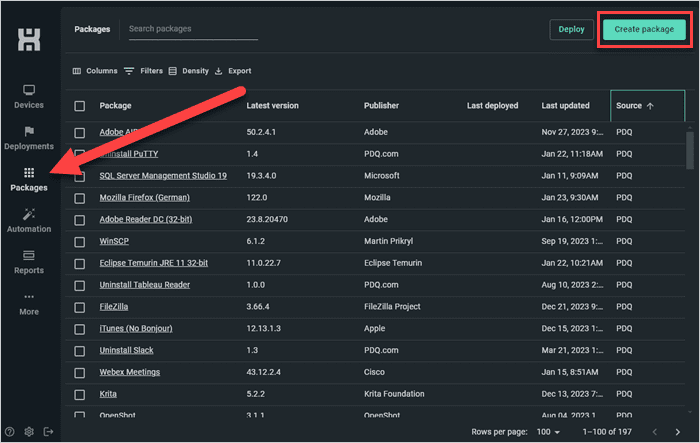
Click the drop-down menu next to Add install step, then click Add script step.
Add the PowerShell script to the script window, then click Save to save the package.
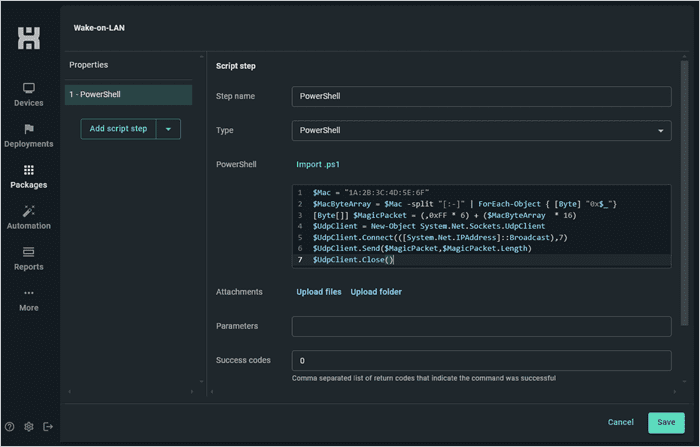


Your package is ready to deploy. Just remember to modify the MAC address to match the MAC address of the target device and send the package to a device located on the same subnet.

Run PowerShell scripts on remote devices
Execute PowerShell scripts on managed devices from anywhere with PDQ Connect.
Want to learn more about creating magic packets in PowerShell? We’ve covered the process.
Keep in mind the WoL hurdles discussed above. There are many things that could cause this method, or any WoL method for that matter, not to work. Your results could vary.
Wake-on-LAN … sometimes
Wake-on-LAN can work reliably, but only when specific network and hardware conditions are met. Unfortunately, there are many caveats that can cause WoL to fail, especially when dealing with remote devices. Which is why my favorite method to turn on remote devices is to call, text, or Slack someone at the location and have them hit the power button. It works 99% of the time. What about the other 1%, you ask? Well, maybe hardware manufacturers should stop putting the power buttons on the backs of all-in-one computers. Just saying.


