

TL;DR: Sysadmins can troubleshoot slow or frozen remote Windows devices faster by checking live process activity before starting a full remote session. PDQ Connect’s updated Processes feature lets admins view running processes, see CPU usage refreshed every 30 seconds, and end problematic processes on managed devices without interrupting users, making it a cleaner option than screen sharing, stale inventory data, or heavier scripting workflows for quick process triage.
When a user says their computer is slow, checking running processes is usually the fastest first move.
A browser tab may be eating CPU. An app may be frozen in the background. Some mystery process may be doing mystery-process things. But starting a remote session just to find out can be heavier than the problem deserves.
With the updated Processes feature in PDQ Connect, admins can view running processes on managed devices, see process data refreshed every 30 seconds, and end problematic processes without taking over the user’s screen.
How do you view running processes on remote devices?
Remote process visibility lets IT admins see what’s running on another device without physically touching it or taking over the user’s screen.
At a basic level, you’re looking for answers to a few practical questions:
Is the app actually running?
Is something chewing through CPU?
Is a process frozen?
Is this worth a remote session, or can you fix it from where you are?
That last one matters more than people admit. Remote sessions have a cost. They break the user’s flow. They turn a small troubleshooting check into an event.
Sometimes you need that. Plenty of problems still deserve a full remote session. But a slow machine doesn’t always need screen control. Sometimes it just needs one bad process gone.
Can you stop remote processes without remoting into a device?
Yes. Sysadmins can stop remote processes without remoting into a device using tools like PowerShell, WMI, CIM, or PDQ Connect.
The catch is that the PowerShell, WMI, and CIM methods come with baggage.
PowerShell is great if you’re comfortable with it and remote execution is already set up. WMI and CIM are useful for scripted workflows, but they’re not exactly the fastest path for a one-off process check. Traditional remote tools work, but they usually mean interrupting the user.
PDQ Connect is the better fit when the device is already managed in Connect and you need a quick answer: What’s running, what’s using resources, and what can I safely end?

Manage Windows & macOS devices from anywhere
With PDQ Connect, get real-time visibility into remote and local devices, deploy software, remediate vulnerabilities, automate routine maintenance, and remotely troubleshoot endpoints from one easy-to-use platform.
Why stale process data makes remote troubleshooting harder
Stale process data is worse than no data in some situations because it looks useful while quietly lying to you.
If the process list is old, the CPU hog may already be gone. Or the process causing the slowdown may have started after the last refresh. Either way, you’re troubleshooting a version of the machine that no longer exists.
That’s especially painful with intermittent issues. A user says, “It keeps freezing,” but by the time you check inventory data, everything looks normal. Great. Very reassuring. Completely unhelpful.
The previous PDQ Connect Processes feature updated process data up to every 12 hours. The updated experience refreshes every 30 seconds.
That changes the use case. You’re no longer looking at a periodic snapshot and making guesses. You’re looking at much fresher process activity while the issue is still happening.
For slow computers, frozen apps, and CPU spikes, that freshness matters.
How PDQ Connect helps admins view and end remote processes
PDQ Connect’s updated Processes experience gives admins a faster way to inspect running processes on managed Windows devices.
From a device in Connect, you can review running processes, check CPU activity, and end a problematic process without starting a remote session.
That means fewer interruptions for users and less ceremony for admins. You don’t need to ask the user to stop what they’re doing just so you can confirm that a browser, installer, updater, or frozen app is causing trouble.
The updated Processes experience includes:
Process data refreshed every 30 seconds
The ability to end processes from PDQ Connect
CPU usage visibility for faster triage
A Processes tab icon near the Deploy button
Processes moved into the “Most Popular” area
None of this makes process troubleshooting glamorous. It just makes it faster, which is usually what you wanted in the first place.
How to view and stop processes in PDQ Connect
To view and stop remote processes in PDQ Connect:
Open PDQ Connect.
Select the device you want to troubleshoot.
Open the Processes tab.
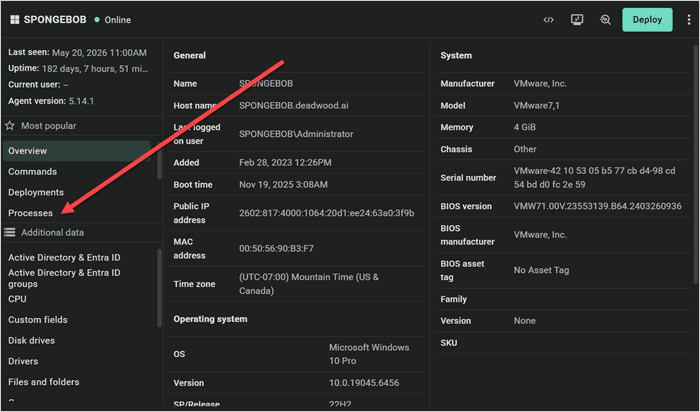
Review the running processes and CPU usage.
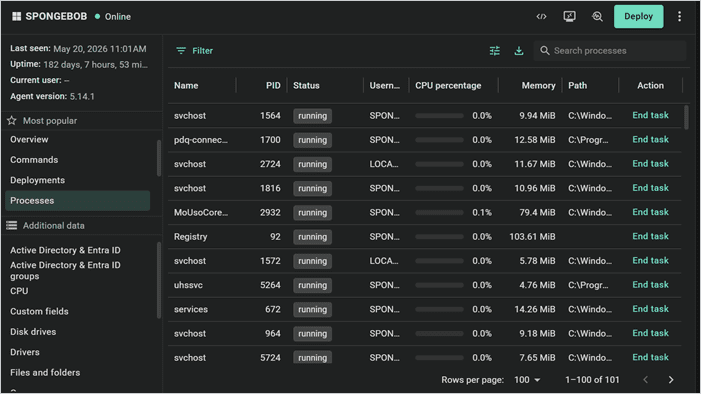
Select the problematic process.
End the process from PDQ Connect.


Other ways to view and stop remote processes
PDQ Connect isn’t the only way to view or stop remote processes. It’s just a cleaner option when the device is already managed in Connect and you need current process visibility without bothering the user.
Here are the common alternatives.
Task Manager or Resource Monitor
Task Manager and Resource Monitor are useful when you’re working locally or already remoted into the device.
The drawback: You need direct access or a remote session. That means interrupting the user, which may be overkill for a simple process check.
PowerShell
PowerShell can view and stop processes with commands like Get-Process and Stop-Process. For remote use, admins can use Invoke-Command when remote execution is configured.
The drawback: It requires the right permissions, PowerShell comfort, and remote execution setup. Great tool. Not always the fastest answer.
WMI or CIM
WMI and CIM are strong options for scripted admin workflows. For example, admins can query process data with Get-CimInstance Win32_Process.
The drawback: It’s more technical and configuration dependent than most quick troubleshooting moments need.
PDQ Deploy & Inventory
PDQ Deploy & Inventory is a strong fit for on-prem Windows environments where devices are reachable over the network or VPN.
The drawback: It’s built for on-prem endpoint management and scripting, not the same kind of cloud-accessible live process view you get in PDQ Connect.
Remote process management methods compared
Method | Best for | Main drawback |
Task Manager or Resource Monitor | Local or already-remoted-in troubleshooting | Requires direct access or a remote session |
PowerShell | Scriptable process checks | Requires command-line comfort and remote setup |
WMI or CIM | Automation-heavy workflows | More technical and configuration-dependent |
PDQ Deploy & Inventory | On-prem endpoint scripting | Less ideal for off-network or live process visibility |
PDQ Connect | Quick cloud-based process visibility and action | Device must be managed in Connect |
When should you use PDQ Connect to view running processes on remote devices?
Use PDQ Connect when you need a fast, low-friction way to check running processes on a managed device without interrupting the user.
It’s a strong fit when:
A user reports a slow computer
You suspect a process is consuming too much CPU
An app appears frozen or unresponsive
You want to avoid a full remote session
The device is remote, off-network, or inconvenient to access directly
You need fresher process data than a periodic inventory scan can provide
The strongest use case is the ordinary one: A user has a problem, you need to know what’s happening right now, and nobody wants a 20-minute screen-share adventure.
Final takeaway
You don’t need PDQ Connect to view or stop processes on a remote device. There are plenty of ways to do it.
But for managed devices, PDQ Connect’s updated Processes feature gives sysadmins a faster and less disruptive way to see what’s running and end problematic processes without remoting in.
Open a device in PDQ Connect, check the device’s Processes tab, and see what’s actually happening before you take over the user’s screen.
Remote processes FAQ
Can you stop a remote process without remoting into the device?
Yes. You can use tools like PowerShell, WMI, CIM, or PDQ Connect to stop remote processes, depending on your permissions, setup, and device management tools.
How often does PDQ Connect refresh process data?
PDQ Connect’s updated Processes feature refreshes process data every 30 seconds.
Why is near-real-time process monitoring useful?
Near-real-time process monitoring helps admins identify CPU-heavy, frozen, or problematic processes while the issue is still happening.
Do you need a remote session to end a process in PDQ Connect?
No. On managed devices, PDQ Connect lets admins view and end processes without starting a full remote session.
What other PDQ Connect features help with remote troubleshooting?
PDQ Connect also includes built-in remote desktop and Commands for troubleshooting issues that need more than process visibility. The Processes tab is a great first stop when you want to check what’s running, review CPU usage, or end a problematic process without interrupting the user. If the issue needs hands-on support, you can start a remote session or use Commands (in the device details page) to run quick checks and fixes on the device.


