

TL;DR: PowerShell updates depend on which version you’re running and how many devices you manage. PowerShell 7.x is the actively developed version and should be kept up to date. You can update it manually with the MSI installer, automatically through Microsoft Update, or quickly using WinGet on a single machine. For larger environments, tools like PDQ or PDQ Deploy & Inventory can automate PowerShell updates across many devices using dynamic groups, packages, and scheduled deployments.
PowerShell can be updated manually, through Microsoft Update, with WinGet, or through automated tools like PDQ. The right method depends on your environment and how many devices you manage. Below are the most reliable ways to update PowerShell on Windows systems.
Windows PowerShell 5.1 vs. PowerShell 7.x
PowerShell exists in two major versions: Windows PowerShell 5.1 and PowerShell 7.x. Windows PowerShell 5.1 no longer receives new features, but it still receives security updates through Windows Update. PowerShell 7.x is actively developed and receives new features, bug fixes, and security updates.
Windows PowerShell version 5.1
Windows PowerShell is the original version of PowerShell. Windows PowerShell, built on .NET Framework and using the Windows Management Framework (WMF), is included with Windows and Windows Server operating systems, making it the most common version of PowerShell. However, it’s no longer being actively developed, meaning it won’t receive new features going forward.
The final version of Windows PowerShell is version 5.1, which is included with Windows 10 and higher, and Windows Server 2016 and higher.
Since Windows PowerShell is not being actively developed, we won’t focus on it.
PowerShell version 7.x
PowerShell 7, formerly known as PowerShell Core, is open source, cross-platform, and built on .NET. It's actively developed and receives regular updates. As of October 2026, PowerShell 7.6 is the current long-term support (LTS) release, with version 7.6.6 being the latest update. PowerShell 7.4 and 7.5 remain supported until November 10, 2026.
While Microsoft continues to confound users with their convoluted naming gymnastics, hopefully this information clears up some of the confusion around the differences between Windows PowerShell and PowerShell.
How do you manually update PowerShell?
You can manually update PowerShell by downloading the latest MSI installer and running it locally, which is the preferred method for Windows Server.
The hardest part about this whole process is finding the right installer. But that’s what I’m here for.
Once you’ve downloaded the MSI package, you’re ready to install it.
Launch the PowerShell 7.x installer.
Click Next.
Set your install directory. I recommend sticking with the default destination unless you have a specific need to change it. Click Next.
Select the optional actions that make sense for your environment. Adding PowerShell to PATH is generally useful, but options such as enabling PowerShell remoting should be selected based on your administrative needs and security requirements. Click Next.
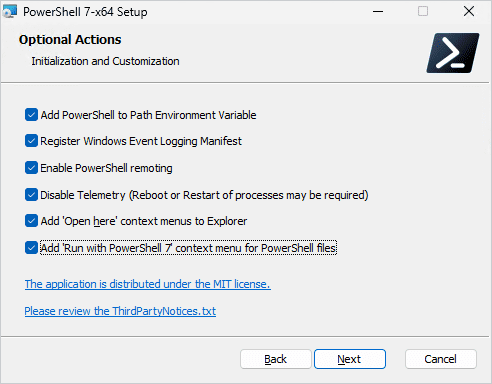
Select whether or not you want PowerShell to automatically update via Microsoft Update or WSUS. We’ll dive more into these update methods in the next section. Click Next.
Click Install. If you receive a User Account Control (UAC) prompt, click Yes.

When the installation finishes, launch PowerShell 7 using pwsh.exe, then run $PSVersionTable to confirm the installed version. Windows PowerShell 5.1 and PowerShell 7 run side by side, so make sure you're checking the correct version.
This method really feels geared towards stubborn people like me who enjoy reminiscing about the good old days. And while I’m reminiscing, let me toss out an obligatory “get off my lawn!” Now I feel at peace.
How do you update PowerShell with Microsoft Update?
Microsoft Update can deliver PowerShell 7 updates when PowerShell is installed using the MSI package and its Microsoft Update integration is enabled. You must also enable updates for other Microsoft products in Windows Update or use an approved enterprise update service, such as WSUS or Microsoft Configuration Manager. Organizational update settings can override these options.
Here’s how to update PowerShell with Windows updates.
Right-click on the Windows Start button, then click Settings.
On Windows 10, click Update & Security. On Windows 11, click Windows Update.
Click Advanced options.
Enable Receive updates for other Microsoft products.
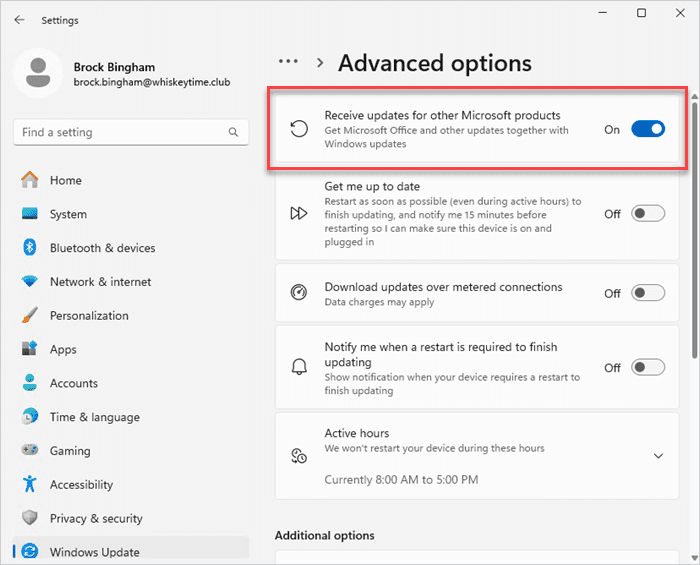

This option is turned on by default when you enable the automatic updates options during the PowerShell MSI installation. See step 5 of the previous section, “How to manually update PowerShell” for more details.
Microsoft Update works well and is a hands-off approach, but you are at the mercy of Microsoft's release schedule. Updates may take a couple of weeks to become available. Microsoft Update also generally delivers patches within your existing PowerShell release channel rather than automatically upgrading you to the newest feature release. For example, PowerShell 7.4 typically receives 7.4 updates rather than automatically upgrading to 7.6.
How do you update PowerShell with winget?
You can update an existing PowerShell installation using WinGet's upgrade command, which checks for a newer version and installs an available update.
WinGet, the command-line interface of Windows Package Manager, can install and update PowerShell on supported Windows systems. It's included with Windows 11 and Windows Server 2025 with Desktop Experience, but isn't available on Windows Server 2022 or earlier.
If you are updating PowerShell for yourself and you haven’t already automated the process, WinGet is probably the fastest and easiest way to do it. And if you know anything about me, you know that fastest and easiest are two of my favorite words. And no, it’s not because I’m lazy — alright, it’s because I’m lazy.
Here’s how to use WinGet to update PowerShell.
Launch a PowerShell or Command Prompt window.
Enter this command to check whether an update is available for your installed version of PowerShell:
winget list --id Microsoft.PowerShell --upgrade-availableIf an update is available, WinGet should display the installed version and the newer version available. If you're prompted to accept a source agreement, enter Y.
If a newer version of PowerShell is available, enter the command:
winget upgrade --id Microsoft.PowerShell --source wingetWinGet should upgrade PowerShell to the available newer version. Whenever possible, use the same installation method you originally used for PowerShell.
One important thing to know: Starting with PowerShell 7.6, WinGet uses the MSIX package by default for new installations. MSI packages are still available for PowerShell 7.6, but Microsoft plans to discontinue them beginning with PowerShell 7.7. MSIX installations also have some limitations involving PowerShell remoting and system-level configuration. If you need the MSI version of PowerShell 7.6, you can specify --installer-type wix when installing with WinGet.
How do you automate PowerShell updates with PDQ?
PDQ can automatically deploy the latest PowerShell version to remote and on-prem devices using dynamic groups and scheduled automations. This is a great solution if you manage devices and need to keep PowerShell up to date on dozens, hundreds, or even thousands of endpoints. For my sysadmin peeps out there, this is the way (said in a very Mandalorian tone).

Manage Windows & macOS devices from anywhere
With PDQ Connect, get real-time visibility into remote and local devices, deploy software, remediate vulnerabilities, automate routine maintenance, and remotely troubleshoot endpoints from one easy-to-use platform.
Before we dive into the tutorial, let me show you how I have my groups in PDQ configured. I have four PowerShell groups:
PowerShell Installed
PowerShell Latest
PowerShell Not Installed
PowerShell Old

Since these are dynamic groups, devices are automatically assigned to them if they match the filters. These custom groups make it easy to identify which devices need PowerShell installed and which need PowerShell updated. While I recommend using all of these groups, the only one that I highly recommend to help you follow this guide is the PowerShell Old group. Here are the filters you’ll need:
Software | Name | contains | PowerShell 7-x64
Software | Version | is less than | $(AppVerPowerShell7)

(Note: You can ignore the first ATLA filter. That's just to keep my test environment organized. The last filter uses $(AppVerPowerShell7), a variable that represents the current version of PDQ's maintained PowerShell 7 package. This automatically updates as newer package versions become available.)
Steps to automate PowerShell updates with PDQ
Now that you know how my groups are configured, let’s look at how to install PowerShell with PDQ.
Launch PDQ.
Click the Packages tab.
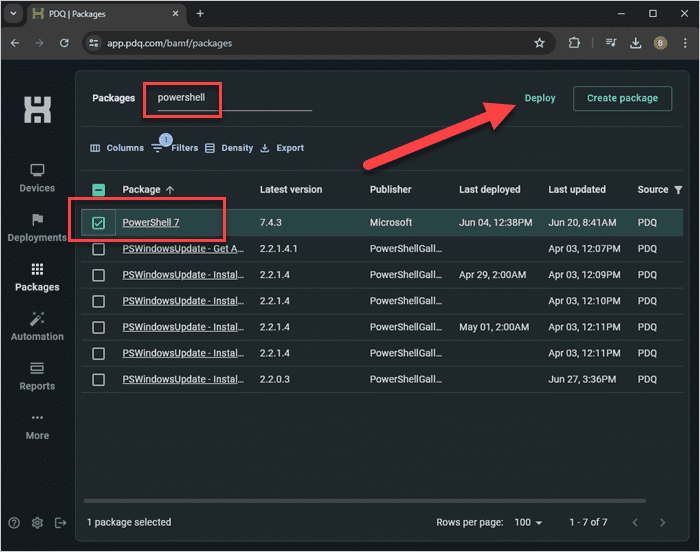
In the search field, type PowerShell to filter the results.
Select the PowerShell 7 package. This package is built and maintained by PDQ, meaning we automatically update it for you when a new version is released.
Click Deploy.
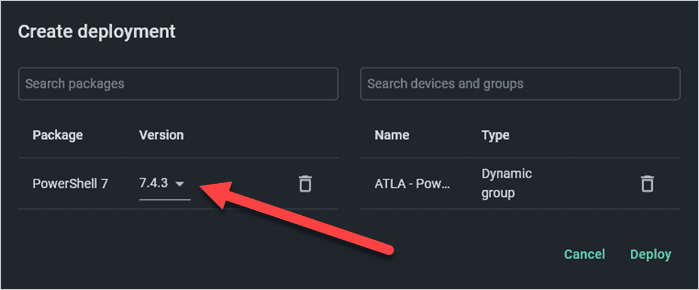
Enter the names of the devices or the device groups you want to install PowerShell on, then click Deploy. Notice that you can choose a specific update of the package to deploy if you want.


In the example above, I deployed the package to my custom group called PowerShell Not Installed. After deployment, three devices had the latest version available at the time, while one device was still running an older version.

Now it’s time to configure our automation, which will ensure that devices running an old version of PowerShell get updated.
Click the Automations tab.
Click Create automation.
Enter PowerShell for the name of the automation.
Select the PowerShell 7 package and ensure the Latest version is selected.

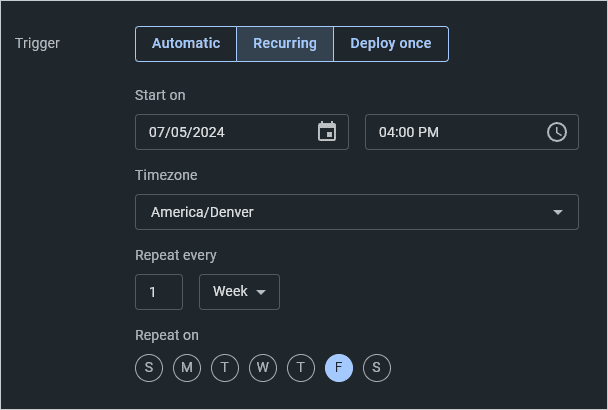
Select the Automatic or the Recurring automation trigger. I’m using the Recurring trigger for this example but use whichever better suits your needs.
Automatic: This trigger deploys the latest version of PowerShell to the target devices/groups as soon as a new version of the PowerShell package is available. It also immediately deploys the package to devices when they join a targeted group.
Recurring: This trigger deploys the latest version of PowerShell according to a schedule you configure.
If you choose Recurring, configure your deployment schedule. I’ve set up my automation to run every Friday at 4 p.m.
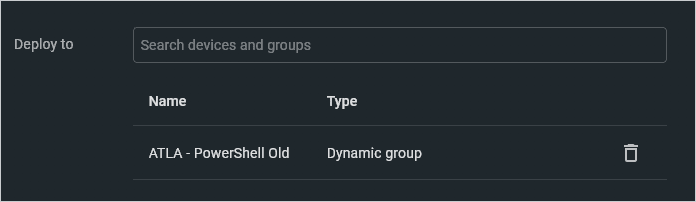
Lastly, in the Deploy to field, add your PowerShell Old group as the target. Turn on the Enabled toggle, then click Save to finish creating the automation.


With the automation configured, PDQ takes care of the rest and keeps your devices running PowerShell updated automatically.
How do you automate PowerShell updates with PDQ Deploy & Inventory?
PDQ Deploy & Inventory can automate PowerShell updates on on-prem Windows devices using Auto Download packages and scheduled deployments. Because Inventory includes tons of prebuilt dynamic collections (including PowerShell collections), we don’t have to worry about creating those ourselves.
Here’s how to update PowerShell with PDQ Deploy & Inventory.
In PDQ Deploy, click Package Library.
In the filter field, type PowerShell.
Select the PowerShell 7 package, then click Download Selected (As Auto Download).

Click the New Schedule button.
Name your schedule PowerShell.
Click the Triggers tab.
Select the automation triggers you want to use. I’ll use the Weekly trigger to match the previous example.
Configure your schedule.

Click the Targets tab.
Click Choose Targets > PDQ Inventory > Collection.
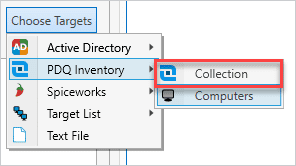
Expand Collection Library > Runtimes > PowerShell > PowerShell 7, then select the PowerShell 7 (Old) collection. Click OK.
Click the Packages tab.
If the PowerShell package isn’t listed, click Attach Packages and select it.
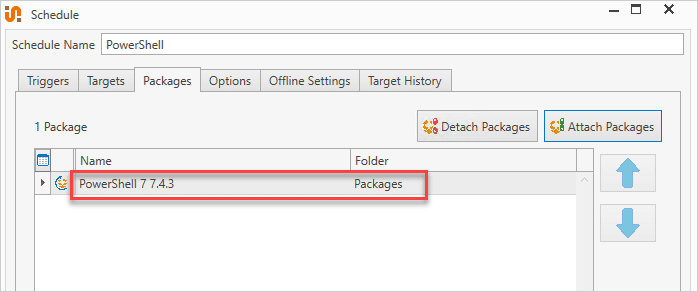
Select the Options tab, then make sure Stop deploying to targets once they succeed is selected.
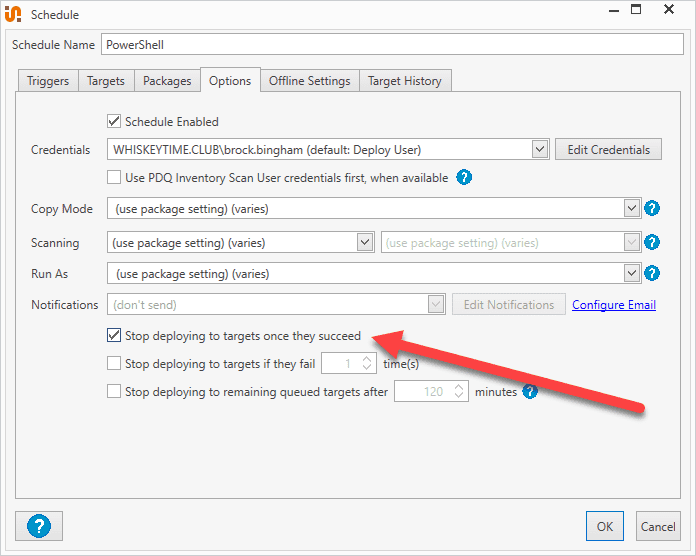
Click OK to save the schedule.


Packages from the Package Library are maintained by PDQ. When a new version of PowerShell is available, PDQ updates the library package. Your Auto Download package then receives the update according to your configured approval settings, which can require manual approval or allow automatic approval after a specified delay.
PDQ Deploy & Inventory is an agentless solution that specializes in on-prem device management. Try it for free and learn what true automation looks like.
Which PowerShell update method should you use?
For individual Windows devices, WinGet or the MSI installer can quickly update PowerShell. For larger environments, Microsoft Update and PDQ offer ways to automate PowerShell updates across multiple devices.
While I recommend automating tedious tasks like this, I can’t blame you if doing things the old-fashioned way gives you that nostalgic kick you’re craving. Take your method of choice and run with it.

