

PowerShell is a cross-platform automation framework and scripting language used to manage systems, automate administrative tasks, and execute repeatable workflows across Windows, macOS, and Linux, making it a versatile tool for managing hybrid environments and scaling automation.
A brief history of PowerShell
PowerShell originated as Microsoft’s effort to build a modern command-line automation framework that could manage Windows at scale. Development began in the early 2000s under the codename Monad, which evolved into Windows PowerShell in 2006 and later into today’s cross-platform PowerShell 7.
Microsoft had identified a need for a more robust administrative automation solution. Early command-line interpreters (CLI), such as COMMAND.COM and Windows Command Prompt (cmd.exe), offered limited functionality and control of the Windows graphical user interface (GUI).
The company considered porting existing UNIX tools to work on Windows OS, but it eventually scrapped these efforts because of the fundamental architectural differences between Linux and Microsoft Windows operating systems. Ultimately, the team at Microsoft determined it would need to develop an entirely new solution from the ground up.
Microsoft began developing the new command-line management system in 2002, calling it Monad. In August 2002, Jeffrey Snover, Monad’s chief architect, released a white paper about the project called the “Monad Manifesto.” The whitepaper documented the shortcomings of existing solutions and detailed Monad’s architecture, advancements, and value.
In October 2003, Microsoft publicly demonstrated the platform at the Professional Developers Conference in Los Angeles. Over the next couple of years, Microsoft released several private and public betas of Monad. Finally, in April 2006, the name was changed to Windows PowerShell, which coincided with the release of PowerShell Release Candidate (RC) 1.
In 2016, Microsoft announced that PowerShell would become open-source and cross-platform, supporting Windows, Ubuntu, macOS, and CentOS. During this transition, two iterations of PowerShell became available, Windows PowerShell and PowerShell Core. Windows PowerShell continued to rely upon .NET Framework, while PowerShell Core ran on .NET Core. When PowerShell 7 was released, Microsoft dropped the term Core from the product, and it served as the replacement for PowerShell Core 6 and Windows PowerShell 5.1.
What is PowerShell used for?
PowerShell is used to automate administrative tasks, manage systems remotely, interact with APIs, and process structured data. It supports everything from quick file operations to large-scale configuration and domain management.
Here are some examples of what PowerShell is commonly used for:
Automating repetitive tasks
Configuration management
Database queries
Formatting data
Interacting with APIs
Manipulating files and folders
Modifying the registry
Returning system configuration information
Starting and stopping services
Systems management
Web scraping
Keep in mind that this is not a complete list of what PowerShell can do. With its functionality and versatility, PowerShell is often only limited by one’s imagination and skill set.

Easily run PowerShell scripts on remote devices
Need to run your awesome PowerShell scripts on remote devices? PDQ Connect can easily execute PowerShell scripts on any managed device with an active internet connection.
Who uses PowerShell?
IT professionals, system administrators, and power users rely on PowerShell to automate tasks and manage systems across Windows, Linux, and macOS.
PowerShell is heavily integrated into all currently supported versions of Windows desktop and Windows Server operating systems. It’s also freely available to macOS and Linux users. All this means that anyone who wants to can use PowerShell. However, the userbase that benefits the most from PowerShell is IT professionals and power users, especially those that can leverage PowerShell’s automation capabilities.
Why should you use PowerShell?
You should use PowerShell because it streamlines complex administrative work, automates repetitive tasks, and provides a consistent interface for managing systems across platforms.
Now is the best time to start learning how to utilize PowerShell. PowerShell has already replaced Command Prompt as the default Windows shell. And now that PowerShell is cross-platform, it’s only going to get bigger as more of the tech community begins utilizing it. From its inception in 2003 to today, Microsoft remains heavily invested in PowerShell, and more importantly, the PowerShell community is propelling the platform forward.
How can you learn PowerShell?
You can learn PowerShell by practicing core cmdlets, following introductory scripting tutorials, and using community resources like documentation, podcasts, and forums. The platform’s verb-noun structure makes it beginner friendly.
While PowerShell scripting can get complex, the platform was designed from the ground up to be easy to understand and use. Learning the top 10 cmdlets is a valuable way to get your feet wet. Then, you can dive in to writing your first PowerShell script.

If you really want to hit the ground running with PowerShell, then one of the most helpful resources available is Learn PowerShell in a Month of Lunches. This book guides you through the most basic concepts of PowerShell all the way to conditional logic and debugging techniques. It’s filled with PowerShell tutorials designed to give you firsthand experience with the scripting language.
Lastly, and this tip is pretty obvious, use your preferred search engine to find online PowerShell documentation. The PowerShell community is a very active group, and it encourages participation. Here are some online resources to check out:
What are the different types of PowerShell consoles?
PowerShell consoles include text-based shells and full script editors, and each serves different automation needs. Interactive CLIs work well for quick commands, while GUI editors like VS Code support debugging and script development.
PowerShell CLI (command-line interface): A CLI is a text-based shell for interactive access to OS functions, files and folders, or services using commands. CLIs are generally bare bones and offer very limited GUI (graphical user interface) interaction. CLIs are great for simple commands and system management.
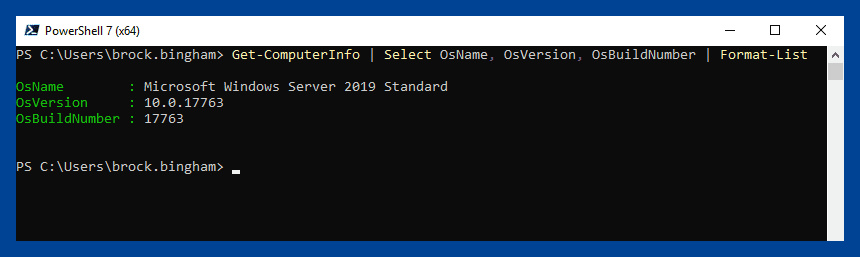
Windows PowerShell Integrated Scripting Environment (ISE): The Windows PowerShell ISE has been included in the Microsoft Windows operating system since Windows 7 SP1. The Windows PowerShell ISE is a graphical user interface designed to help users build, modify, test, run, and open PowerShell scripts. Microsoft has dropped feature development for PowerShell ISE. However, it continues to receive security and high-priority servicing fixes. Additionally, Windows PowerShell ISE only supports versions up to PowerShell 5.1 and does not support newer versions, like PowerShell 7.
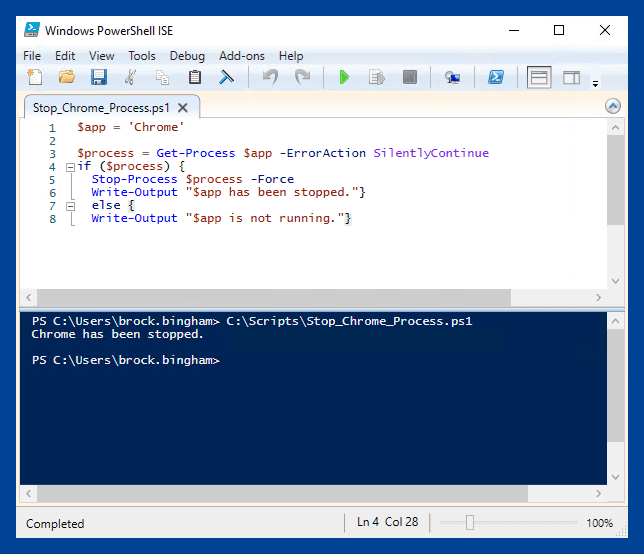
VS Code: Visual Studio Code, commonly referred to as VS Code, is a free, lightweight code editor developed by Microsoft. It supports a wide variety of popular programming languages, including Python, C++, PHP, Ruby, JavaScript, PowerShell, and many more. Through installable extensions, VS Code offers a great feature set, including IntelliSense, script debugging, and syntax highlighting. It also supports PowerShell versions 5.1 to 7+ and all versions of PowerShell Core. VS Code is highly customizable by installing Microsoft and community-developed extensions.
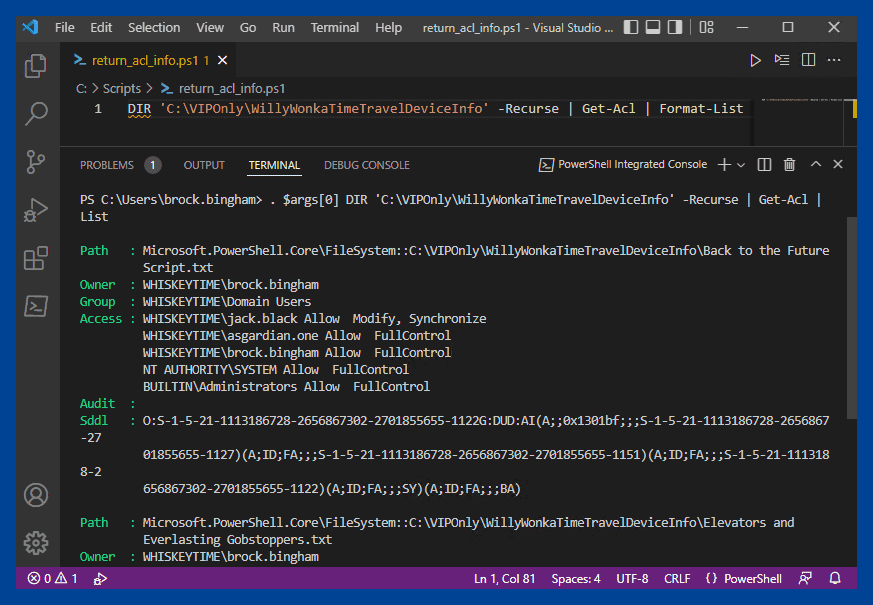
Windows Terminal: Windows Terminal is a dedicated console for all your favorite command-line shells. Think of it as a more advanced PowerShell CLI that works with other shells, including Command Prompt, Git Bash, Azure Cloud, Ubuntu, etc. Windows Terminal helps organize your command-line windows with tabs and split windowpanes and allows you to heavily customize your experience with backgrounds, color schemes, customizable shortcuts, and themes.
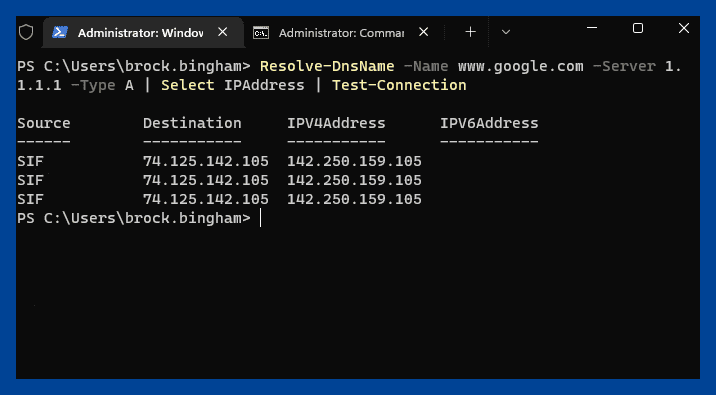


What are PowerShell commands?
PowerShell commands, known as cmdlets, are lightweight .NET-based functions that follow a verb-noun naming pattern such as Get-Help or Start-Service. PowerShell cmdlets are not stand-alone executables. For example, the commonly used Command Prompt command ipconfig runs the ipconfig executable.

PowerShell cmdlets follow a verb-noun naming scheme. This naming format makes it easier to remember PowerShell cmdlet names and understand what they do.
PowerShell 7 has over 1,500 cmdlets built-in, and you can add additional cmdlets by importing PowerShell modules. Each PowerShell module is a self-contained package that might include cmdlets, functions, workflows, variables and more.
One commonly used PowerShell modules include the PSWindowsUpdate module. To view other popular PowerShell modules, check out the PowerShell Gallery, which contains an extensive collection of Microsoft- and community-developed modules.
To get a list of all the currently available cmdlets in your PowerShell environment, run the Get-Command cmdlet.
What’s the difference between CMD and PowerShell?
The main difference between CMD and PowerShell is that CMD runs text-based executables, while PowerShell uses .NET-based cmdlets that return rich objects. This object model enables advanced automation, data manipulation, and pipeline operations.

While CMD and PowerShell may look similar (especially if you are running the PowerShell 7 CLI) and their design objectives are similar, there are more differences than similarities between these two shells.
The most significant difference between CMD and PowerShell is that CMD relies upon a relatively short list of internal commands and stand-alone executables that return text string results, while PowerShell is built upon the .NET CLR (Common Language Runtime) and uses lightweight cmdlets to perform actions and typically return .NET objects.
PowerShell is an object-oriented scripting language and shell, and nearly everything in PowerShell is an object. Objects are made up of their object type, methods, and properties. Unlike strings, objects can be inspected, manipulated, and piped to other cmdlets while retaining their methods and properties.
What is the difference between PowerShell and Windows PowerShell?
PowerShell and Windows PowerShell are different versions of Microsoft's automation language.
PowerShell, sometimes referred to as Microsoft PowerShell or PowerShell Core, is a cross-platform scripting language built on newer versions of .NET. Windows PowerShell is the original version of PowerShell, which focuses on Windows environments and uses the .NET Framework.
What is Azure PowerShell?
Azure PowerShell refers to modules built for managing resources in Microsoft Azure. Microsoft recommends using PowerShell 7 or higher with these modules.
Looking to put PowerShell into practice? Start with a 14-day free trial of PDQ Connect to streamline patch management and software deployment in your environment. For ongoing insights and expert interviews, tune into The PowerShell Podcast. And if you want to connect with fellow PowerShell enthusiasts, join the PDQ Discord community to swap tips, scripts, and laughs.


