

TL;DR: A silent uninstall removes software from devices without user interaction, making it ideal for remote management, security remediation, and reducing help desk interruptions. To silently uninstall most applications, find the uninstall string and silent parameters using tools like PDQ Connect, PDQ Inventory, usage statements, or vendor docs, then deploy or automate the command across devices using PDQ tools for fast, scalable removal.
A silent uninstall lets you remove software from managed devices without alerting end users. This method is fast, remote-friendly, and ideal for keeping systems secure without interruptions. And the less your end users see, the more your help desk team will love you. (That includes you loving yourself if you are the help desk team.)
Here’s how to silently uninstall almost any application.
Why are silent uninstalls important?
Silent uninstalls are critical because they remove vulnerable, unauthorized, or unnecessary software without disrupting users, helping maintain security and system performance.
Sometimes I feel like uninstalls don't get the respect they deserve, and that's partially my fault. I spend much more time teaching users how to install software and push out updates and not enough time demonstrating uninstalls. But today, I atone for my lack of uninstall content by dedicating an entire article to silent uninstalls!
Just like the brake pedal is as invaluable as the gas pedal in your car, uninstallation is just as important as installation. In fact, I'd argue the brake pedal is more important, even though you use it less. When a deer decides to step onto the road while you're cruising in your Toyota Celica at 50 mph, you're suddenly extremely grateful for that brake pedal.
The same can be said for uninstalls. Sure, an uninstall won't save your life. But if you need to remove an application with a vulnerability, that silent uninstallation is suddenly very important.
How to find silent uninstall parameters
Before making an uninstall package, we first need to find the silent install parameters for the application we're uninstalling. If you're dealing with a .msi file, you can skip this step. Since .msi files are standardized, PDQ Deploy automatically fills in your silent parameters.
If you're dealing with some other file type, like a .exe file, then you might have some detective work to do. Let's look at a few ways to find silent parameters.
Find silent parameters with PDQ Connect or PDQ Inventory
PDQ Connect and PDQ Inventory are great places to start when looking for silent uninstall parameters. They document the uninstall strings for installed applications. You can copy the uninstall command, including the silent parameter, and put it into a custom deployment package.
Find silent parameters with usage statements
A usage statement provides instructions on invoking a program from a command-line interface (CLI). Usage statements include arguments that can be passed to the program, including silent parameters. Usage statements may also include detailed descriptions and examples. Many, but not all, applications provide usage statements.
Most usage statements can be displayed by appending "/?" to the end of the command invoking an application.
Find silent parameters on the internet
Though I probably don't need to mention this option, I will anyway. The internet is a great way to find silent parameters. I know — it's shocking that the internet continues to be a great resource for information. Who knew?
Sarcasm aside, most developers understand the importance of silently installing and uninstalling applications and generally provide detailed usage information on their websites. And even if the developer doesn't provide the information, you'll often find other users who have already documented the silent uninstall process for a given application.
Find silent parameters using Universal Silent Switch Finder (USSF)
If you've used PDQ Connect or PDQ Inventory, the usage statement, and Google and still haven't found what you're looking for, give USSF a try. USSF is a dedicated application for finding silent parameters. While I've had mixed results using USSF, it's definitely worth a try if you're desperate to find a silent switch.
How to create a silent uninstall package with PDQ Connect
PDQ Connect is our agent-based solution designed to manage those hard-to-reach remote devices. True to our brand, Connect makes creating and deploying uninstall packages easy — not to mention you can even automate those packages. Here's how to create and deploy a silent uninstall package in PDQ Connect.

Automate patching with PDQ Connect
Keep Windows & macOS devices patched and secure from the cloud.
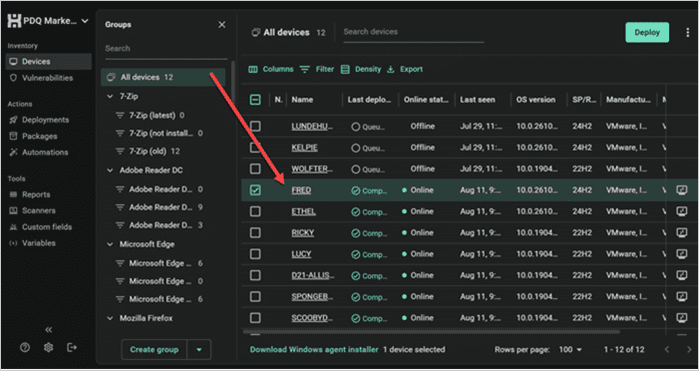
In PDQ Connect, click on a device link.
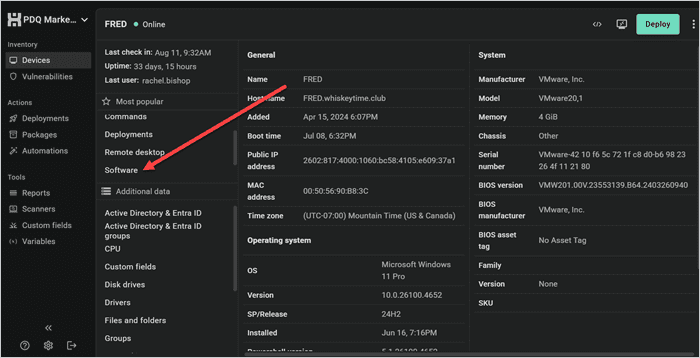
Click on the Software menu option.
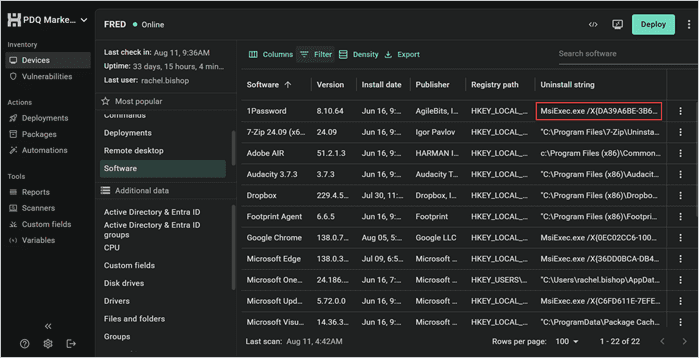
Locate the Uninstall string column, then copy the uninstall string for the application you want to remove.
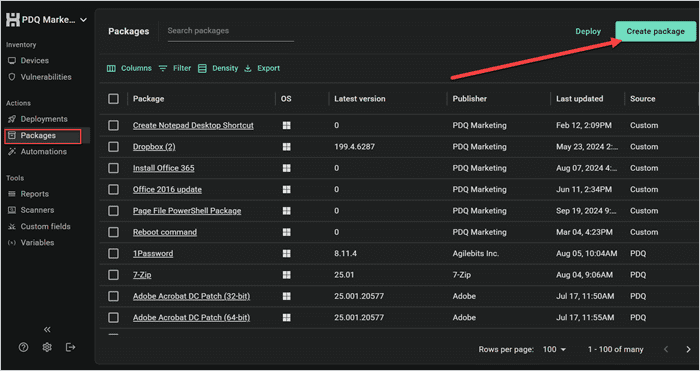
Click Packages, then click Create package.
Name the package, then click the Add install step drop-down menu, and select Add script step.
Enter cmd.exe /c followed by the command you copied into the PowerShell command window. Ensure you add a space between /c and your command.
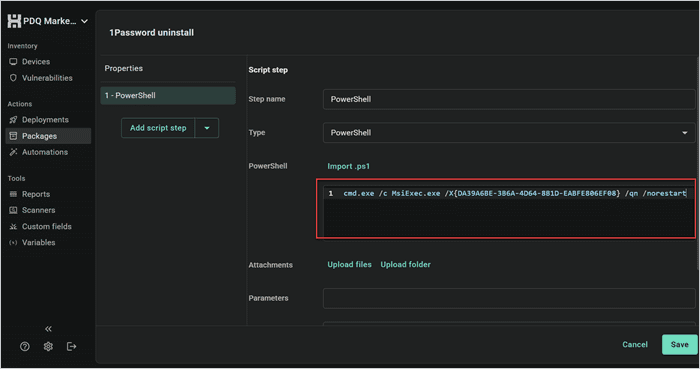
Click Save to save and close the package.
All that's left is to deploy the uninstall package. To do so, simply select the package, click Deploy, add your targets, then click Deploy.
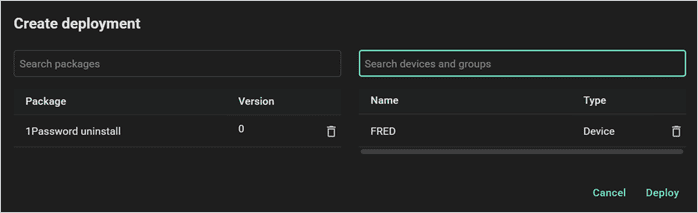


When the deployment finishes, scan your devices, then confirm that the application has been uninstalled.
How to silently uninstall applications with PDQ Inventory
PDQ Inventory lets you silently uninstall applications by running stored uninstall strings directly from the console. Here's how it works.
PDQ Inventory retrieves uninstall strings from the registry. Depending on the application, this information may not always be accurate. Scan and verify the application has been removed after using this method.
In PDQ Inventory, double-click on a computer to open its details window.
Click on the Applications menu option. Here you'll find a list of installed applications and their uninstall strings.
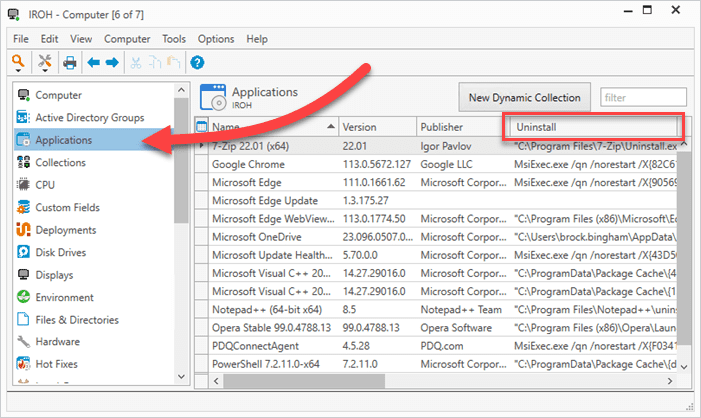
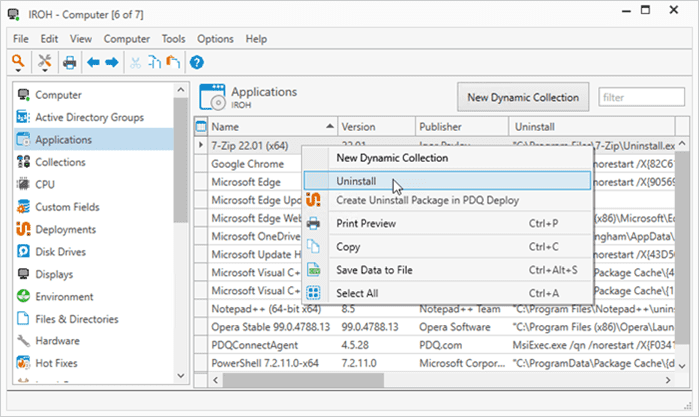
Right-click on an application, then click Uninstall.
Review the settings on the remote run command window, then click Execute when ready. Note that the computer you are running the command against is shown in the bottom left corner of the remote command window.
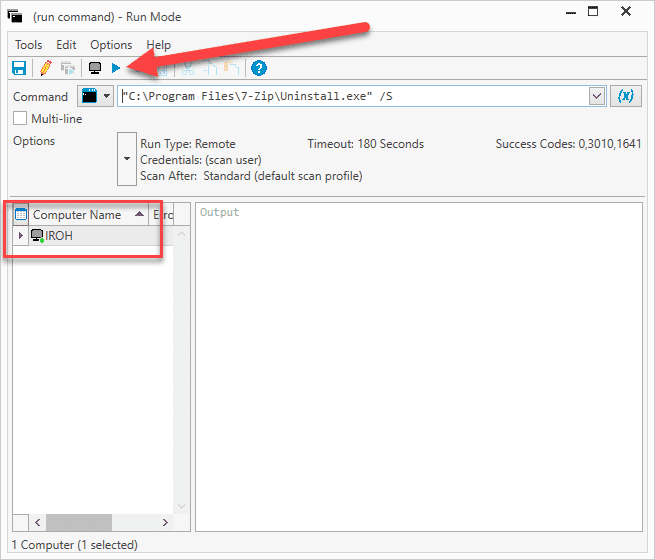


Once the command finishes and the device is scanned, the application disappears from the applications list. With just a few clicks, we silently uninstalled an application from a managed device. However, while uninstalling applications with Inventory is quick and easy, it's not the most efficient option if you need to remove an application from many devices.

Install (and uninstall) silently
See how easy device management can be — whether you're remote or on-prem.
How to create a silent uninstall package with PDQ Deploy & Inventory
Creating a silent uninstall package with PDQ Deploy & Inventory is so easy it almost feels like cheating. Not only does Inventory provide us with the silent uninstall string, but it also gives us the option to create an uninstall package in Deploy automatically. Here's how.
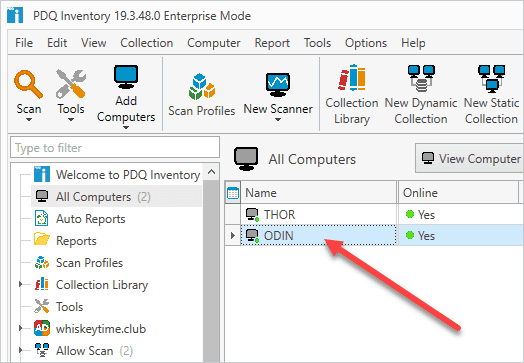
In PDQ Inventory, double-click on a computer to open the computer details window.
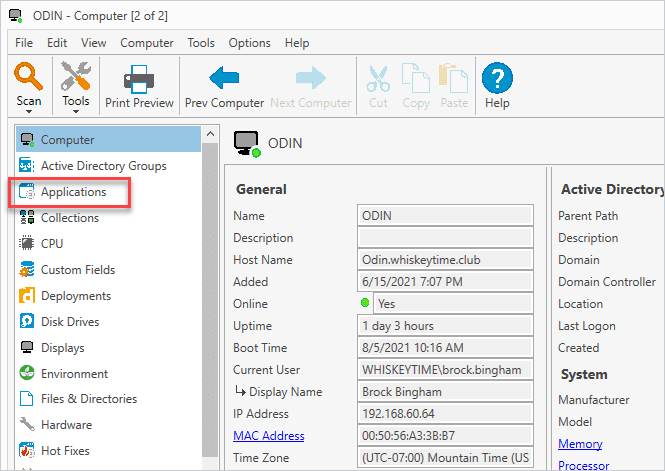
Click on the Applications menu option.
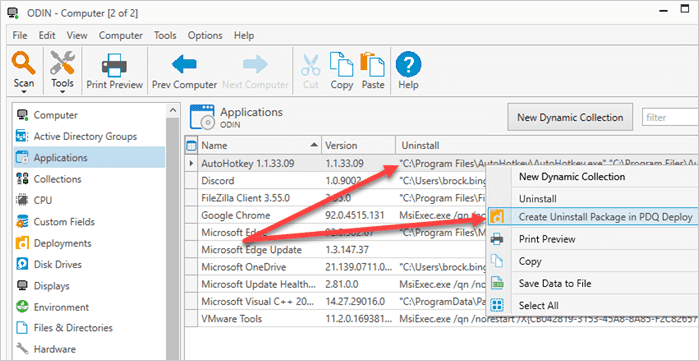
Right-click on an application row you want to uninstall, then click Create Uninstall Package in PDQ Deploy.
PDQ Deploy automatically opens a custom package window containing the uninstall command. Review the package settings, then click Save.
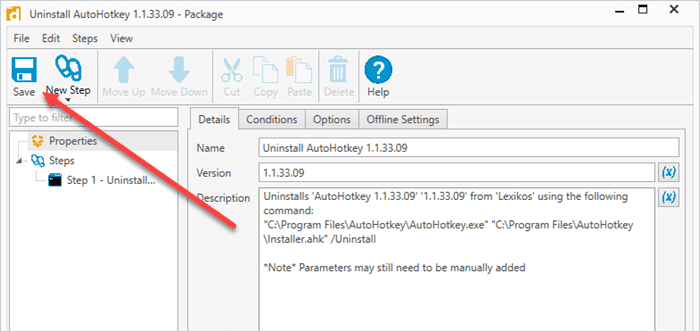
Close the package window.


To deploy the newly created uninstall package:
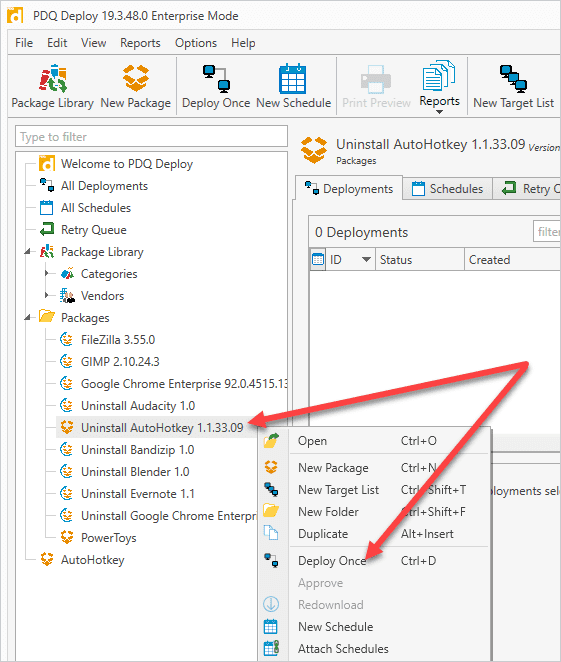
Locate and right-click the newly created package in PDQ Deploy, then click Deploy Once.
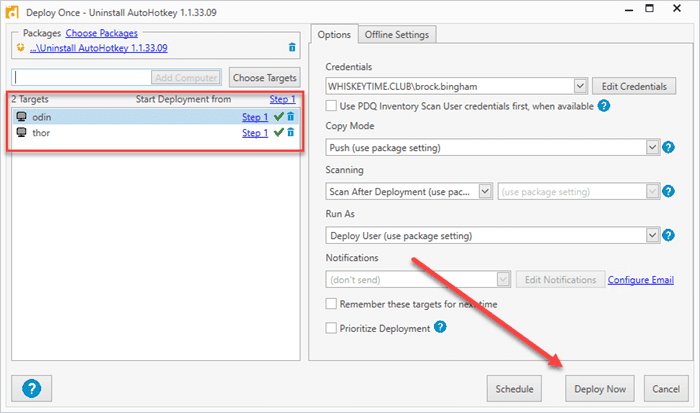
Add targets to the deployment, then click Deploy Now.


At this point, you can grab some coffee and let PDQ Deploy do its thing. The deployment window lets you know when the uninstall package has finished deploying.

If we go back into PDQ Inventory, we can see that AutoHotkey is no longer listed as an installed application.

How to automate silent uninstalls
Automating silent uninstalls ensures unwanted or unauthorized applications are removed automatically from managed devices without manual intervention.
Have you ever had a user install an application they weren't supposed to? And even though you've threatened them and removed it, they install it again. That, my fellow sysadmins, is the use case for an automated uninstall.
Luckily, setting up automated uninstalls in PDQ Connect and PDQ Deploy is easy, especially if you've already created your uninstall package.
Automate silent uninstalls with PDQ Connect
The automatic deployment trigger deploys packages to specific devices or device groups once a desired action (trigger) takes place. Triggers include a package being updated to a newer version or the device group membership changing. For example, you can configure PDQ Connect to run a package on any new machines that join your network (if they’ve got the PDQ Connect agent running on them).
Let’s take Microsoft Edge for example. We can kick that bad boy to the curb as soon as a new device joins the network. Here’s how.
1. In PDQ Connect, click Automation.

2. Click Create automation in the right-hand corner of PDQ Connect. This takes you to the new automation panel.


3. Decide on a name for your new automation. For our purposes, we’ll name it Uninstall Edge from computers on the network.

4. In the Packages field, type uninstall microsoft edge. Click the result that pops up.

5. In the Trigger section, click Automatic. This commands the package to deploy in specific circumstances as outlined below.

6. In the Deploy to section, find the group you want to apply the automation to and select it.

7. Click Save in the bottom-right corner of Connect.

Have a lot of silent uninstalls to perform? Use the bandwidth management feature to curtail how many deployments happen at once. Because clogging up your network is no fun.
Automate silent uninstalls with PDQ Deploy
Here’s how to automate a silent uninstall in PDQ Deploy.
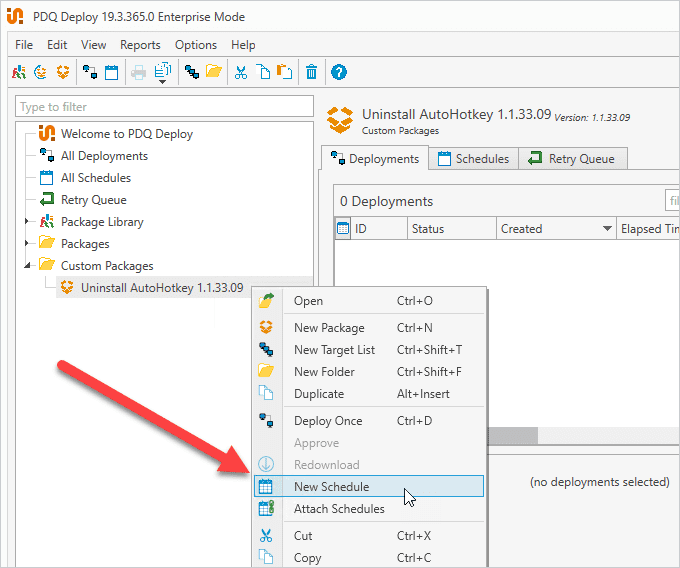
Right-click on the uninstall package in PDQ Deploy, then click New Schedule.
Give the schedule a name, then click the Triggers tab if it's not already selected.
Configure your deployment schedule. I'll set my schedule to run weekly using the Weekly trigger and configure it to run every Wednesday at 4:00 p.m.
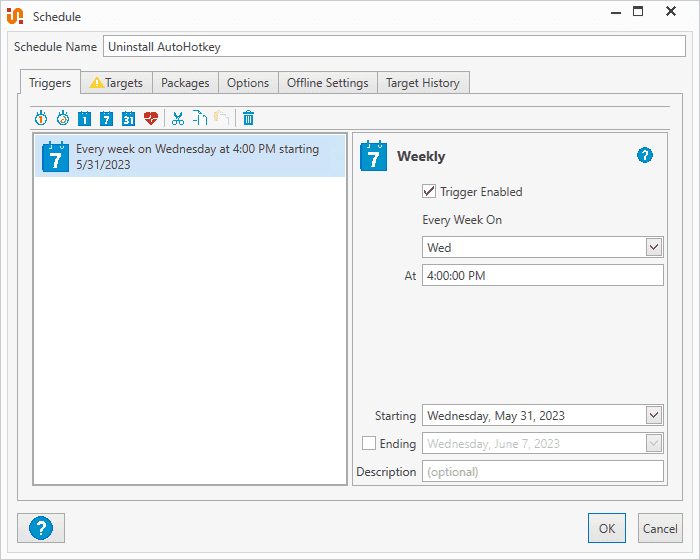
Once you've got your schedule configured, click the Targets tab.
Enter the name of the computers you want to deploy this package to or click the Choose Targets button to select targets from a source like Active Directory or PDQ Inventory.
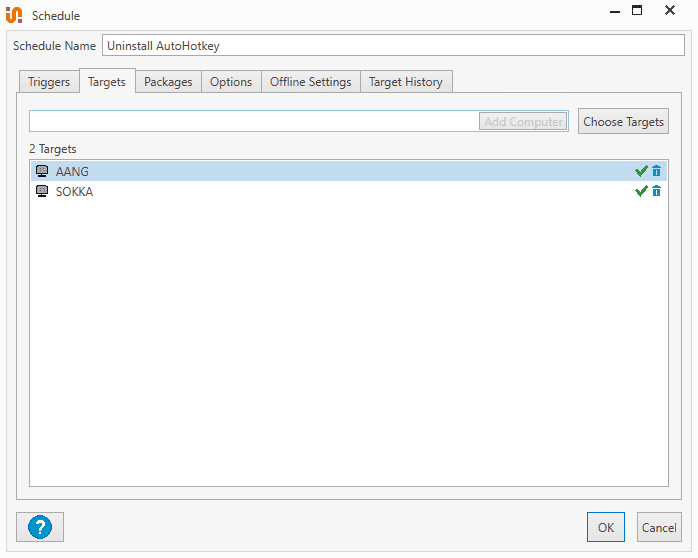
Click the Packages tab, and ensure your uninstall package is attached. If it's not attached, click Attach Packages and attach it.
Click the Options tab, then uncheck Stop deploying to targets once they succeed. This ensures the uninstall package is always sent to the targeted devices.
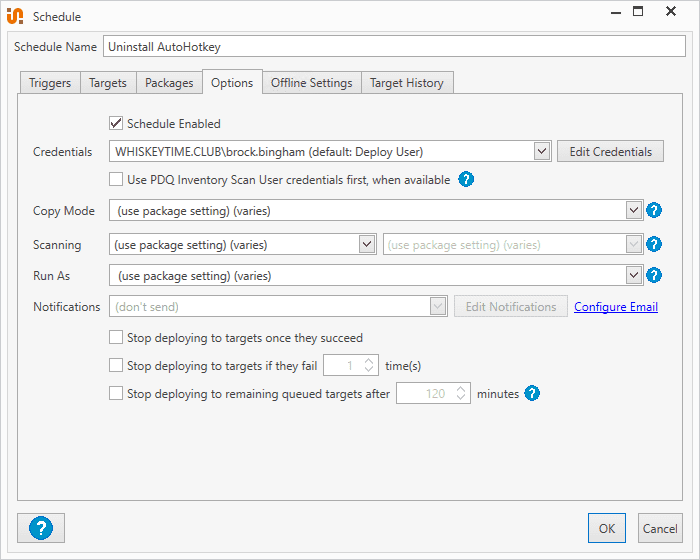
Click OK to save and close the schedule window.


I recommend targeting a PDQ Inventory collection with this type of schedule because the computers are only targeted when they rejoin the application collection.
Silent uninstall FAQs
What is a silent uninstall?
A silent uninstall removes software from a device without showing prompts or requiring user interaction. It is useful for remote administration, security remediation, and large-scale software cleanup.
Why are silent uninstalls important?
Silent uninstalls help remove vulnerable, unauthorized, or unnecessary software without interrupting end users. This improves security, reduces help desk friction, and keeps managed devices standardized.
How do you find silent uninstall parameters?
You can find silent uninstall parameters in uninstall strings from PDQ Connect or PDQ Inventory, in application usage statements, in vendor documentation, or with tools like Universal Silent Switch Finder.
Can you automate silent uninstalls?
Yes. You can automate silent uninstalls in PDQ Connect with automations and in PDQ Deploy with schedules that repeatedly run uninstall packages against target devices.
Simplify silent uninstalls with PDQ tools
PDQ's products are designed to simplify your endpoint management needs, including your uninstalls.
If you're struggling to manage your managed endpoints’ applications, try out PDQ Connect or PDQ Deploy & Inventory for free for 14 days. The Package Library has hundreds of prebuilt packages, so there's a good chance we've already built a package for whatever you're trying to uninstall.

