

TL;DR: MSPs can use PDQ to manage Windows patching across separate client tenants, with tenant-level visibility into applicable KBs, deployment status, and installed updates. Most patching can be handled directly from the Windows updates view or PSWindowsUpdate packages. For internet-connected environments, PDQ can also replace many common WSUS workflows while adding inventory, deployment tracking, reporting, and third-party patching.
Managing Windows updates across multiple client environments requires keeping devices, deployments, and results organized by customer. In PDQ, you can switch into each client tenant and manage its Windows devices separately. For MSPs looking to reduce their reliance on WSUS, PDQ can also cover many of the same day-to-day Windows update workflows for internet-connected endpoints, including finding applicable updates, deploying them, and tracking results.
Here’s how those Windows update workflows work in PDQ.
How Windows updates work in PDQ
PDQ includes a dedicated Windows updates tab on the left navigation bar that gives MSPs a tenant-wide view of applicable Microsoft KBs across their managed Windows devices. Updates are broken down by status — Not Installed, In Progress, Pending Reboot, Failed, or Installed — so you can quickly see where each update stands.
From the Windows updates tab, you can drill into a KB to see which devices are affected, then trigger installs for one or multiple devices across one or multiple KBs. Each KB gets its own deployment, making it easier to track individual updates.
Windows update installs also appear on the Deployments page with a Windows Update deployment type so you can filter them separately from package deployments. You can also open the Windows updates tab on an individual device to see all update states for that machine.
How to install Windows updates in PDQ
To install Windows updates, first switch into the tenant you want to manage. Then use the Windows updates page to find applicable KBs and deploy them to the devices that need them. Here's how the process breaks down:
In the left navigation, select Windows updates.
Find the update you want to install. PDQ shows applicable KBs across the current tenant, along with device counts for each status, including Not Installed, In Progress, Pending Reboot, Failed, and Installed.
Select one or more KBs, then click Install to deploy them to all eligible devices. To install a specific KB on only certain devices, click its Not installed device count, select the devices you want to target, and then click Install.
Start the deployment. If you select multiple KBs, PDQ creates a separate deployment for each update so you can track their results individually.
Monitor progress from the Deployments page. Windows update installs appear with the Windows Update deployment type, making them easier to distinguish from package deployments.
You can also manage updates for a single endpoint by opening the device from the Devices page, selecting its Windows updates tab, and installing applicable updates from there.
What are Windows update packages in PDQ?
For most MSPs, using the Windows updates tab is the easiest way to maintain visibility and distribute Windows updates. But it's not the only way. PDQ also offers prebuilt packages that target specific tasks related to Windows updates. For the sake of simplicity, the names are self-explanatory.
PSWindowsUpdate – Get All Applicable Updates from Microsoft (Audit Only)
PSWindowsUpdate – Install All Applicable Updates from Microsoft (No Drivers, No Feature Updates)
PSWindowsUpdate – Install Applicable Critical and Security Updates from Microsoft
PSWindowsUpdate – Install Applicable Drivers from Microsoft
PSWindowsUpdate – Install Applicable Feature Updates from Microsoft
PSWindowsUpdate - Install Specific Microsoft KB
Each of these packages relies on PSWindowsUpdate, a popular PowerShell module for managing Windows updates. These packages use PSWindowsUpdate to query Microsoft Update and, for installation packages, install applicable updates.
The same package may install different updates on different endpoints because PSWindowsUpdate installs only the updates applicable to each device.
How to deploy a Windows update package in PDQ
If a PSWindowsUpdate package better fits your use case, first switch into the tenant you want to manage. Then you can deploy the package to individual devices or groups within that tenant.
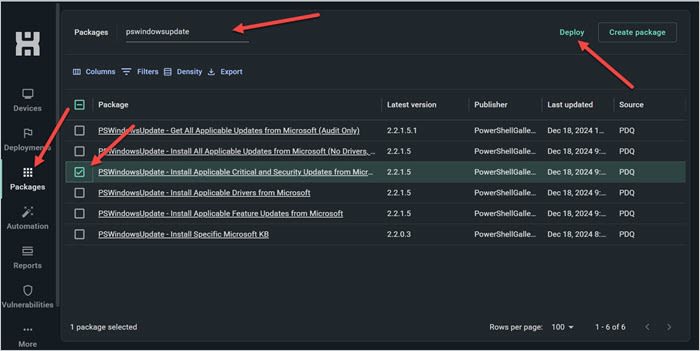
In the left navigation bar, select Packages. In the Search packages field, type pswindowsupdate, then select your package of choice. For this example, I’ll select PSWindowsUpdate – Install Applicable Critical and Security Updates from Microsoft. Then, click Deploy.
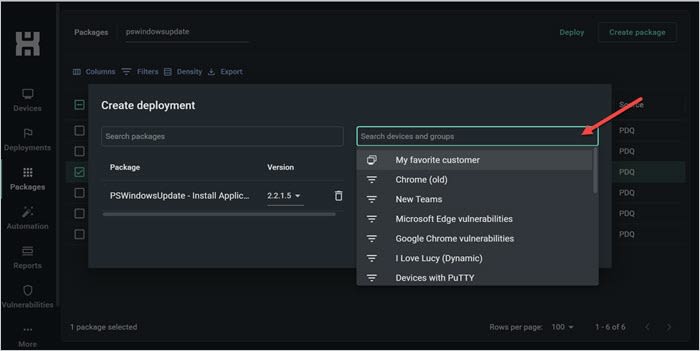
Select your target device group. In this example, I’m targeting the My favorite customer group I created (because I play favorites).
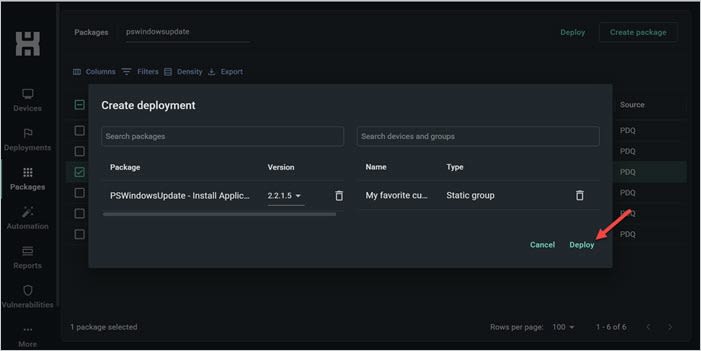
Click Deploy.


And that’s it! But there are a couple of slight caveats:
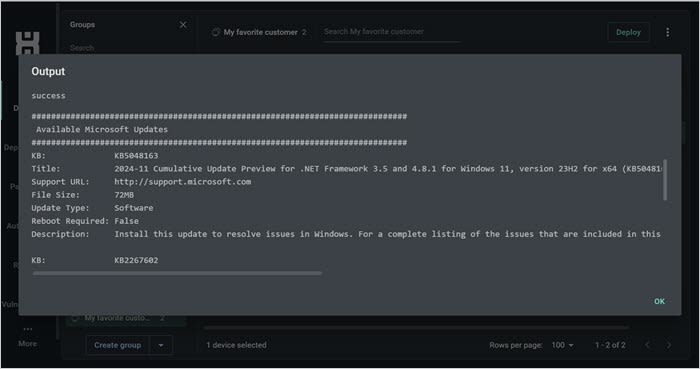
If you run PSWindowsUpdate – Get All Applicable Updates from Microsoft (Audit Only), the results you’re looking for will be in the output log after deployment.

How does PDQ compare to WSUS?
PDQ and WSUS can both help admins manage Windows updates, but they use different approaches. With Microsoft no longer actively developing WSUS, IT teams and MSPs evaluating alternatives can use PDQ to manage Windows patching on internet-connected endpoints while also handling device inventory, deployment tracking, reporting, and third-party patching.
Capability | WSUS | PDQ |
|---|---|---|
Update source | Uses a WSUS server that synchronizes Microsoft updates | Uses the Windows Update Agent on each managed endpoint to identify applicable updates and trigger installs |
Air-gapped environments | Can support disconnected environments using an export and import workflow | Requires internet connectivity and is not designed for air-gapped endpoints |
Update control | Admins approve updates for defined computer groups | Admins select applicable KBs and deploy them to specific devices |
Tracking and reporting | Provides centralized update status and reporting | Shows KB status, tracks installs, and supports reports for installed Windows updates |
Third-party patching | Does not provide a built-in curated third-party package library | Includes prebuilt packages for popular third-party applications |
Migrating Windows update workflows from WSUS to PDQ
Moving Windows update workflows from WSUS to PDQ works best as a phased process. Start by documenting your existing WSUS setup, then test deployments with a small group before expanding to additional devices and tenants.
Document your existing WSUS configuration and device groups.
Map those devices to the appropriate PDQ tenants and groups.
Test Windows update deployments on a small group of representative endpoints.
Roll out updates in phases and verify results in Windows updates, Deployments, or Reports.
MSP Windows updates FAQs
Can PDQ handle third-party updates?
Yes. PDQ can manage Microsoft Windows updates alongside software deployments for popular third-party applications using prebuilt packages from the Package Library.
How do I audit which Windows updates were applied?
Use the Windows updates page and Deployments page to track update status and deployment results. You can also build reports showing installed Windows updates, including update titles and installation dates.
Can PDQ patch Windows Server without WSUS?
Yes. PDQ can identify applicable Microsoft updates and deploy them to supported internet-connected Windows Server devices. The PDQ agent supports 64-bit Windows Server 2016 or later, so an on-premises WSUS server is not required for these devices.
Ready to see your clients gasp in disbelieving delight? Get Windows updates on their endpoints with less hassle. Schedule a demo or start a trial to see PDQ in action.


